
Automated E2E testing with Gauge and Selenium

Everyone knows how important testing is in modern software development. In today's CI/CD world tests are even more crucial, often playing the role of software acceptance criteria. With this in mind, it is clear that modern software needs good, fast, reliable and automated tests to help deliver high-quality software quickly and without major bugs.
In this article, we will focus on how to create E2E/Acceptance tests for an application with a micro-frontend using Gauge and Selenium framework. We will check how to test both parts of our application - API and frontend within one process that could be easily integrated into a CD/CD.
What is an Automated End-To-End (E2E) testing?
Automated end-to-end testing is one of the testing techniques that aims to test the functionality of the whole application (microservice in our case) and its interactions with other microservices, databases, etc. We can say that thanks to automated E2E testing, we are able to simulate real-world scenarios and test our application from the ‘user’ perspective. In our case, we can think of a ‘user’ not only as a person who will use our application but also as our API consumers - other microservices. Thanks to such a testing approach, we can be sure that our application interacts well with the surrounding world and that all components are working as designed.
What is an application with a micro-frontend?
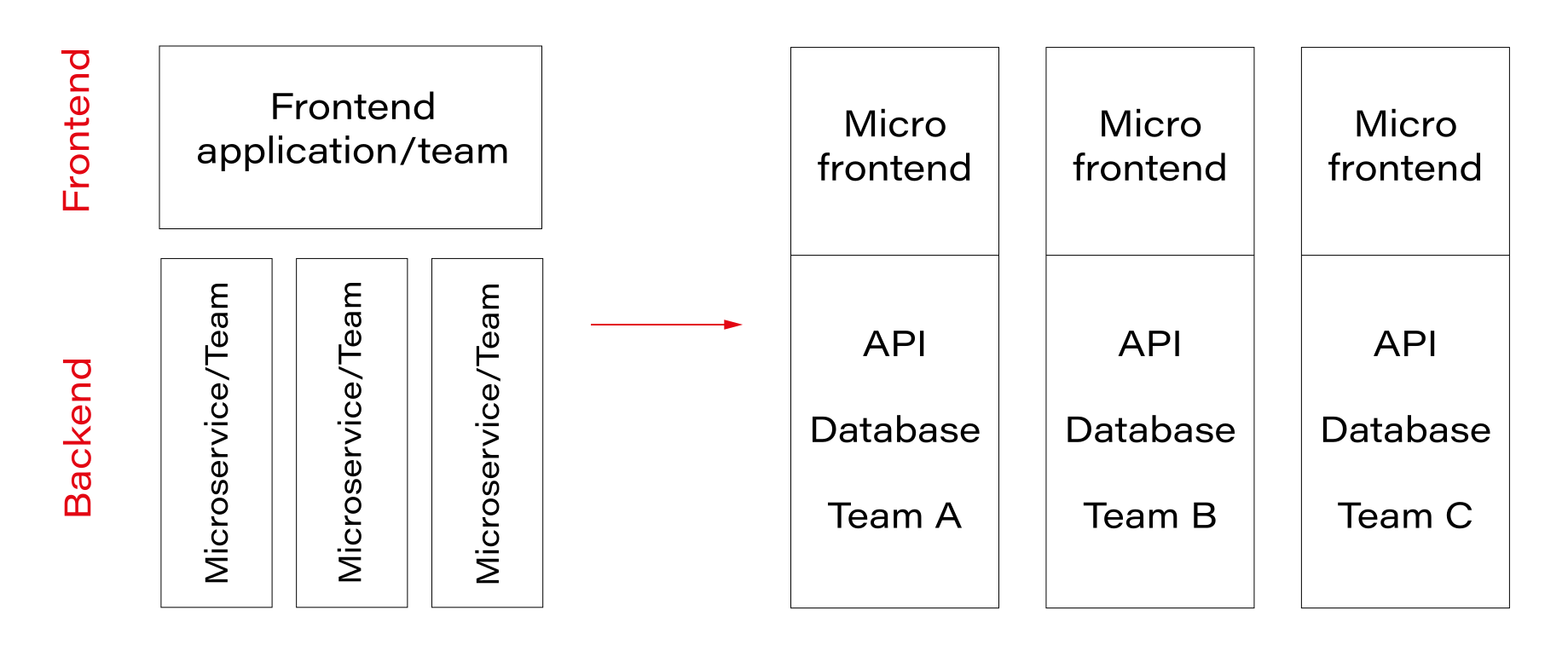
We can say that a micro-frontend concept is a kind of an extension of the microservice approach that covers also a frontend part. So, instead of having one big frontend application and a dedicated team of frontend specialists, we can split it into smaller parts and integrate it with backend microservices and teams. Thanks to this fronted application is ‘closer’ to the backend.
The expertise is concentrated in one team that knows its domain very well. This means that the team can implement software in a more agile way, adapt to the changing requirements, and deliver the product much faster - you may also know such concept as a team/software verticalization.
Acceptance testing in practice
Let’s take a look at a real-life example of how we can implement acceptance tests in our application.
Use case
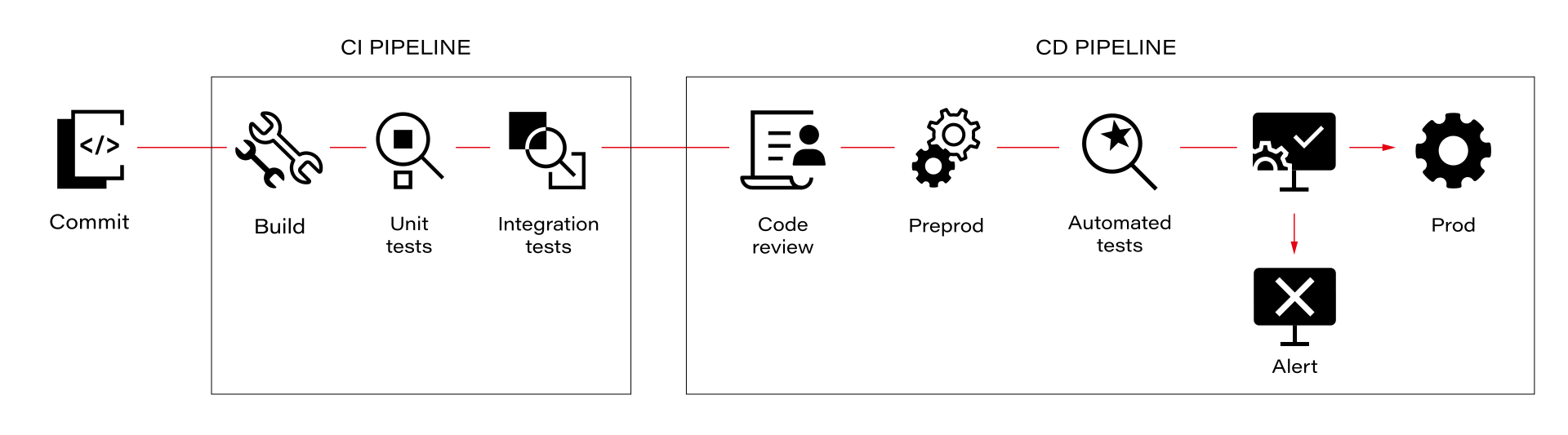
Our team is responsible for developing API (backend microservices) in a large e-commerce application. We have API automated tests integrated into our CI/CD pipeline - we use the Gauge framework to develop automated acceptance tests for our backend APIs. We execute our E2E tests against the PreProd environment every time we deploy a new version of a microservice. If the tests are successful, we can deploy the new version to the production environment.
Due to organizational changes and team verticalization, we have to assume responsibility and ownership of several micro-frontends. Unfortunately, these micro-frontend applications do not have automated tests.
We decided to solve this problem as soon as possible, with as little effort as possible. To achieve this goal, we decided to extend our automated Gauge tests to cover the frontend part as well.
As a result of investigating how to integrate frontend automated tests into our existing solution, we concluded that the easiest way to do this is to use Selenium WebDriver. Thanks to that, we can still use the Gauge framework as a base – test case definition, providing test data, etc. – and test our frontend part.
In this article, we will take a look at how we integrate Selenium WebDriver with Gauge tests for one of our micro-frontend pages– “order overview.”
Gauge framework
Gauge framework is a free and open-source framework for creating and running E2E/acceptance tests. It supports different languages like Java, JavaScript, C#, Python, and Golang so we can choose our preferred language to implement test steps.
Each test scenario consists of steps, each independent so we can reuse it across many test scenarios. Scenarios can be grouped into specifications. To create a scenario, all we have to do is call proper steps with desired arguments in a proper order. So, having proper steps makes scenario creation quite easy, even for a non-technical person.
Gauge specification is a set of test cases (scenarios) that describe the application feature that needs to be tested. Each specification is written using a Markdown-like syntax.
Visit store and search for the products
=======================================

Tags: preprod
table:testData.csv

Running before each scenario
* Login as a user <user> with password <password>

Search for products
-------------------------------------
* Goto store home page
* Search for <product>

Tear down steps for this specification
---------------------------------------
* Logout user <user>
In this Specification Visit store and search for the products is the specification heading, Search for products is a single scenario which consists of two steps Goto store home page and Search for <product> .
Login as a user is a step that will be performed before every scenario in this specification. The same applies to the Logout user step, which will be performed after each scenario.
Gauge support Specification tagging and data-driven testing.
The tag feature allows us to tag Specification or scenarios and then execute tests only for specific tags
Data-driven testing allows us to provide test data in table form. Thanks to that, the scenario will be executed for all table rows. In our example, Search for products scenario will be executed for all products listed in the testData.csv file. Gauge supports data-driven testing using external CSV files and Markdown tables defined in the Specification.
For more information about writing Gauge specifications, please visit: https://docs.gauge.org/writing-specifications?os=windows&language=java&ide=vscode#specifications-spec . Gauge framework also provides us with a test report in the form of an HTML document in which we can find detailed information about test execution.
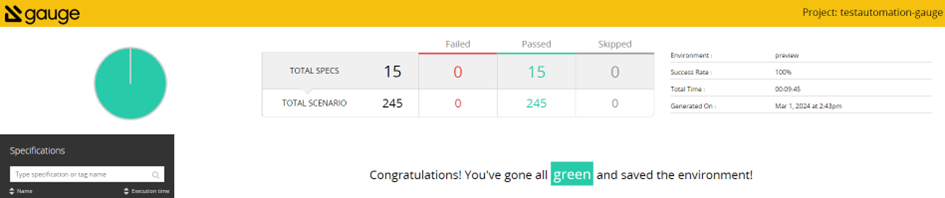
Test reports can be also extended with screenshots of failure or custom messages
For more information about framework, and how to install and use it, please visit the official page: https://gauge.org/ .
Selenium WebDriver
Gauge itself doesn’t have a capability for automating browsers, so if we want to use it to cover frontend testing, then we need to use some web driver for that. In our example, we will use the Selenium WebDriver.
Selenium WebDriver is a part of a well-known Selenium Framework. It uses browser APIs provided by different vendors to control the browsers. This allows us to use different WebDriver implementations and run our tests using almost any popular browser. Thanks to that, we can easily test our UI on different browsers within a single test execution
For more information, please visit: https://www.selenium.dev/ .
To achieve our goal of testing both parts of our application—frontend and API endpoints—in the scope of one process, we can combine these two solutions, so we use Selenium WebDriver while implementing Gauge test steps.
Example
If we already know what kind of tools we would like to use to implement our tests so, let’s take a look at how we can do this.
First of all, let’s take a look at our project POM file.
Pom.xml
<?xml version="1.0" encoding="UTF-8"?>
<project xmlns="http://maven.apache.org/POM/4.0.0"
         xmlns:xsi="http://www.w3.org/2001/XMLSchema-instance"
         xsi:schemaLocation="http://maven.apache.org/POM/4.0.0 http://maven.apache.org/xsd/maven-4.0.0.xsd">
    <modelVersion>4.0.0</modelVersion>

    <parent>
        <groupId>org.springframework.boot</groupId>
        <artifactId>spring-boot-starter-parent</artifactId>
        <version>3.1.4</version>
        <relativePath/>
    </parent>

    <groupId>com.gauge.automated</groupId>
    <artifactId>testautomation-gauge</artifactId>
    <version>1.0.0-SNAPSHOT</version>
    <name>testautomation-gauge</name>
    <description>testautomation - user acceptance tests using gauge framework</description>

    <properties>
        <java.version>17</java.version>
        <gauge-java.version>0.10.2</gauge-java.version>
        <selenium.version>4.14.1</selenium.version>
    </properties>

    <dependencies>
        <dependency>
            <groupId>org.springframework.boot</groupId>
            <artifactId>spring-boot-starter</artifactId>
        </dependency>
        <dependency>
            <groupId>org.springframework.boot</groupId>
            <artifactId>spring-boot-starter-web</artifactId>
        </dependency>
        <dependency>
            <groupId>org.springframework.boot</groupId>
            <artifactId>spring-boot-starter-webflux</artifactId>
        </dependency>
        <dependency>
            <groupId>com.thoughtworks.gauge</groupId>
            <artifactId>gauge-java</artifactId>
            <version>${gauge-java.version}</version>
            <scope>test</scope>
        </dependency>
        <dependency>
            <groupId>org.junit.jupiter</groupId>
            <artifactId>junit-jupiter-engine</artifactId>
            <version>5.9.3</version>
            <scope>test</scope>
        </dependency>
        <dependency>
            <groupId>org.projectlombok</groupId>
            <artifactId>lombok</artifactId>
            <optional>true</optional>
            <scope>provided</scope>
        </dependency>
        <dependency>
            <groupId>org.seleniumhq.selenium</groupId>
            <artifactId>selenium-java</artifactId>
            <version>${selenium.version}</version>
        </dependency>
        <dependency>
            <groupId>org.seleniumhq.selenium</groupId>
            <artifactId>selenium-api</artifactId>
            <version>${selenium.version}</version>
        </dependency>
        <dependency>
            <groupId>org.seleniumhq.selenium</groupId>
            <artifactId>selenium-chrome-driver</artifactId>
            <version>${selenium.version}</version>
        </dependency>
        <dependency>
            <groupId>org.seleniumhq.selenium</groupId>
            <artifactId>selenium-chromium-driver</artifactId>
            <version>${selenium.version}</version>
        </dependency>
        <dependency>
            <groupId>org.seleniumhq.selenium</groupId>
            <artifactId>selenium-json</artifactId>
            <version>${selenium.version}</version>
        </dependency>
        <dependency>
            <groupId>org.seleniumhq.selenium</groupId>
            <artifactId>selenium-remote-driver</artifactId>
            <version>${selenium.version}</version>
        </dependency>
        <dependency>
            <groupId>org.seleniumhq.selenium</groupId>
            <artifactId>selenium-http</artifactId>
            <version>${selenium.version}</version>
        </dependency>
        <dependency>
            <groupId>org.seleniumhq.selenium</groupId>
            <artifactId>selenium-support</artifactId>
            <version>${selenium.version}</version>
        </dependency>
        <dependency>
            <groupId>org.seleniumhq.selenium</groupId>
            <artifactId>selenium-manager</artifactId>
            <version>${selenium.version}</version>
        </dependency>
    </dependencies>

    <build>
        <plugins>
            <plugin>
                <groupId>org.springframework.boot</groupId>
                <artifactId>spring-boot-maven-plugin</artifactId>
                <executions>
                    <execution>
                        <goals>
                            <goal>build-info</goal>
                        </goals>
                    </execution>
                </executions>
            </plugin>
            <plugin>
                <groupId>com.thoughtworks.gauge.maven</groupId>
                <artifactId>gauge-maven-plugin</artifactId>
                <version>1.6.1</version>
                <executions>
                    <execution>
                        <phase>test</phase>
                        <configuration>
                            <specsDir>specs</specsDir>
                        </configuration>
                        <goals>
                            <goal>execute</goal>
                        </goals>
                    </execution>
                </executions>
            </plugin>
        </plugins>
    </build>

</project>
As we can see, all we need to do to use the Selenium WebDriver together with Gauge is add proper dependencies to our POM file. In this example, we focus on a Chrome WebDriver implementation, but if you want to use another browser—Firefox, Edge, or Safari—all you need to do is add the proper Selenium dependency and configure the driver.
Next, what we need to do to enable Chrome Selenium WebDriver is to configure it:
protected ChromeDriver setupChromeDriver()
{
    ChromeOptions chromeOptions = new ChromeOptions();
    // we should configure our environment to run chrome as non-root user instead
    chromeOptions.addArguments("--no-sandbox");
    chromeOptions.addArguments("--remote-allow-origins=*");
    // to run chrome in a headless mode
    chromeOptions.addArguments("--headless=new");
    // to avoid Chrome crashes in certain VMs
    chromeOptions.addArguments("--disable-dev-shm-usage");
    chromeOptions.addArguments("--ignore-certificate-errors");
    return new ChromeDriver(chromeOptions);
And that’s all, now we can use Selenium WebDriver in the Gauge step implementation. If you want to use a different WebDriver implementation, you have to configure it properly, but all other steps will remain the same. Now let’s take a look at some implementation details.
Sample Specification
Create order for a login user with default payment and shipping address
============================================================================================================

Tags: test,preprod, prod
table:testData.csv

Running before each scenario
* Login as a user <user> with password <password>


Case-1: Successfully create new order
----------------------------------------------------------------------------------
* Create order draft with item "TestItem"
* Create new order for a user
* Verify order details
* Get all orders for a user <user>
* Change status <status> for order <orderId>
* Fetch and verify order <orderId>
* Remove order <orderId>


Tear down steps for this specification
---------------------------------------------------------------------------------------------------------------------------------------------------
* Delete orders for a user <user>
In our example, we use just a few simple steps, but you can use as many steps as you wish, and they can be much more complicated with more arguments and so on.
Steps implementation
Here is an implementation for some of the test steps. We use Java to implement the steps, but Gauge supports many other languages to do this so feel free to use your favorite.
import org.openqa.selenium.By;
import org.openqa.selenium.WebDriver;
import org.openqa.selenium.WebElement;
import org.openqa.selenium.chrome.ChromeDriver;
import org.springframework.http.HttpHeaders;
import org.springframework.http.ResponseEntity;
import org.springframework.web.reactive.function.client.WebClientResponseException;
import com.thoughtworks.gauge.Step;

import static org.junit.jupiter.api.Assertions.assertEquals;
import static org.junit.jupiter.api.Assertions.assertNotNull;


public class ExampleSpec extends BasicSpec
{
    @Step("Login as a user <user> with password <password>")
    public void logInAsAUser(final String login, final String password)
    {
       final ChromeDriver driver = setupChromeDriver();
       login(driver, login, password);
    }

    @Step("Create order draft with item <itemName>")
    public void createOrderDraft(final String itemName)
    {
       OrderDraftRequest request = buildDraftRequest(itemName);
       ResponseEntity<String> response = callOrderDraftEndpoint(request);

       assertNotNull(response);
       assertEquals(201, response.getStatusCodeValue());
    }

    @Step("Create new order for a user")
    public void createOrder(final String itemName)
    {
       final ChromeDriver driver = setupChromeDriver();
       createOrder(driver);
    }

    @Step("Verify order details")
    public void verifyOrderDetails()
    {
    final WebDriver driver = (WebDriver) ScenarioDataStore.get
    (SCENARIO_DATA_STORE_WEB_DRIVER);
    final WebElement orderId = driver.findElement(By.tagName("order-id"));
    validateWebElement(orderId);
    final WebElement orderDate = popLinkHeader.findElement(By.className("order-date"));
    validateWebElement(orderId);
   }
    private ResponseEntity<String> callOrderDraftEndpoint(final OrderDraftRequest request)
    {
       ResponseEntity<String> response;
       final String traceId = generateXTraceId();
       log.info("addToCart x-trace-id {}", traceId);
       try
       {
          response = webClient.post()
             .uri(uriBuilder -> uriBuilder.path(appConfiguration.getOrderDraftEndpoint())
             .header(HttpHeaders.AUTHORIZATION, "Bearer " + appConfiguration.getToken())
             .header("Accept-Language", "de")
             .bodyValue(request)
             .retrieve()
             .toEntity(String.class)
             .block(Duration.ofSeconds(100));
       }
       catch (final WebClientResponseException webClientResponseException)
       {
          response = new ResponseEntity<>(webClientResponseException.getStatusCode());
       }
       return response;
    }

    private void login(final WebDriver driver, final String login, final String password)
    {
       driver.get(getLoginUrl().toString());
       // find email input
       WebElement emailInput = driver.findElement(By.xpath("//*[@id=\"email\"]"));
       // find password input
       WebElement passwordInput = driver.findElement(By.xpath("//*[@id=\"password\"]"));
       // find login button
       WebElement loginButton = driver.findElement(By.xpath("//*[@id=\"btn-login\"]"));
       // type user email into email input
       emailInput.sendKeys(login);
       // type user password into password input
       passwordInput.sendKeys(password);
       // click on login button
       loginButton.click();
    }

    private void createOrder(WebDriver driver) {
       driver.get(getCheckoutUrl().toString());
       WebElement createOrderButton = driver.findElement(By.xpath("//*[@id=\"create-
       order\"]"));
       createOrderButton.click();

}
    private void validateWebElement(final WebElement webElement)
    {
      assertNotNull(webElement);
      assertTrue(webElement.isDisplayed());
    }
As we can see, it is fairly simple to use Selenium WebDriver within Gauge tests. WebDriver plugins provide a powerful extension to our tests and allow us to create Gauge scenarios that also test the frontend part of our application. You can use multiple WebDriver implementations to cover different web browsers, ensuring that your UI looks and behaves the same in different environments.
The presented example can be easily integrated into your CI/CD process. Thanks to this, it can be a part of the acceptance tests of our application. This will allow you to deliver your software even faster with the confidence that our changes are well-tested.

Grape Up guides enterprises on their data-driven transformation journey
Ready to ship? Let's talk.
Check related articles
Read our blog and stay informed about the industry's latest trends and solutions.
Should UI testing and API testing go together?
If you have ever worked on writing UI automation tests, you probably came to the point when your test suite is so extensive that it takes a long time to run all the cases. And if the suite keeps on expanding, the situation won't look better. Applications are growing and the number of tests will constantly increase. Luckily, there is a solution to speed up test runs. In this article, we present the advantages of using some help in the form of API testing in the UI test suite, focusing on the aspect of test execution time.
How can API Requests help you?
- Tests will be easier to maintain - UI is constantly changing when API requests are persistent (for the most part)
- You will get immediate tests result from the business logic side
- You can find bugs and solve problems faster and in a more effective way
- You will see a significant improvement in the test execution time
If there are some unwanted issues in the application, we want to be able to discover them as fast as possible. That’s why test execution time is significant in the development cycle. Before we focus on the API requests, first let’s take a small step back and take a look at the test from the UI side only.
Customer path
UI testing is literally the path that the customer is taking through the app, and it is crucial to write automation tests for these workflows. Sometimes we need to repeat the same steps in many feature files (especially if we are taking care of data independence ) and it is not necessary to go over them again on UI side in each test.
Imagine that as a customer you can configure your car through the app. You can start with choosing a basic model and then add some extra equipment for your vehicle. Let’s take a look at this example written in Gherkin:
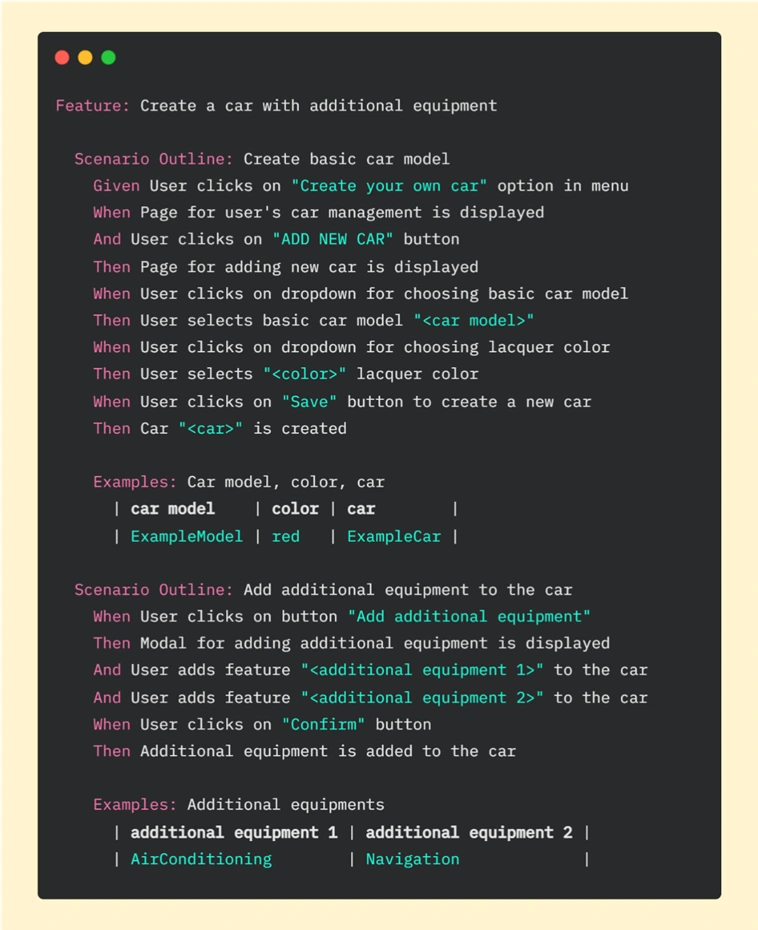
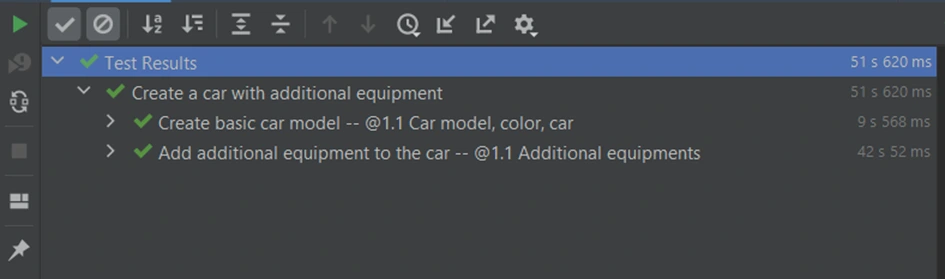
It is basic functionality, so we went through this workflow step by step on the UI side. In this test, we have many components that need to be fully loaded - pages, buttons, modals, and dropdowns. Every action takes some time - loading individual elements and clicking on them. It takes 51.63s. in total to run this scenario in PyCharm:
API enters the stage
Let’s now consider another case. What if customers change their minds about the color of the vehicle or they want to add or delete extra equipment? We need to be able to edit the order. Let's create an additional test for this workflow.
If we want to edit the vehicle, first we need to have one. We can start the Edit car test by creating a new vehicle using all the steps from the previous feature file, but we can also use API help here. Replacing repeatable steps with API requests will allow us to focus on the new functionality on the UI side. Let’s look at the Gherkin file for editing a car:
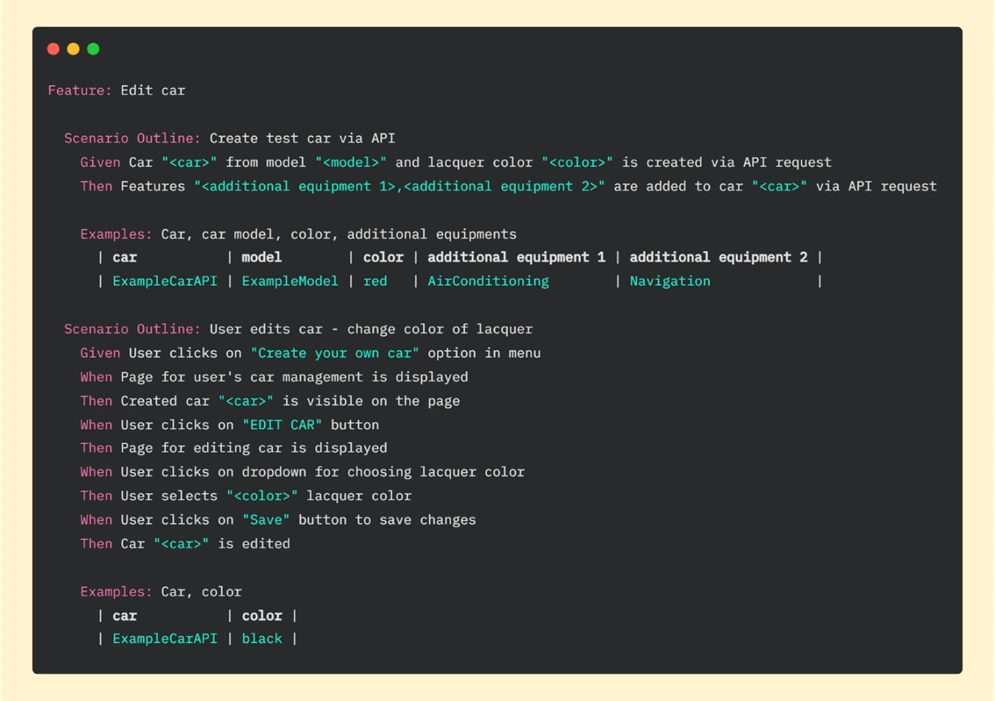
In the first scenario of this feature, we are creating a car (via API) and in the second one editing the vehicle (through UI). In scenario “Create test car via API” we created the same car as in the previous feature “Create a car with additional equipment” , where everything was done on the UI side. If we look at the result now, we can see that the whole test (creating and editing a car) took less than 17 seconds:
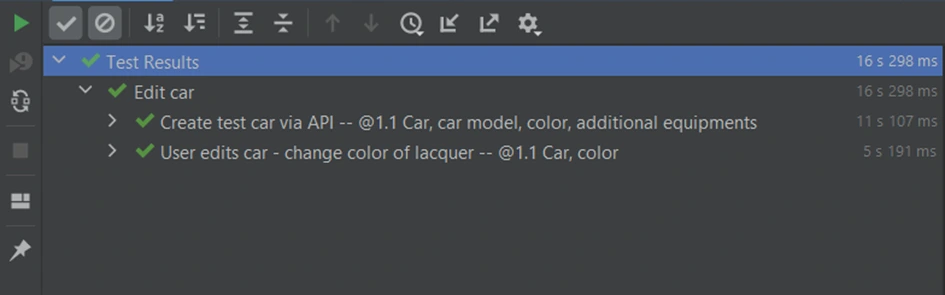
Part for creating a vehicle by API took 11.107 seconds. To run these steps on the UI side we needed more than 50 seconds. To be precise we’ve just saved 40.513 seconds in one test! Imagine that we have another 10 or more tests that need that functionality - it can be a big time saver.
A request for help
Key for benefit from API in UI test suite is to use popular Python library called Requests – it allows us to easily send HTTP requests. Basic POST requests can take the following form:
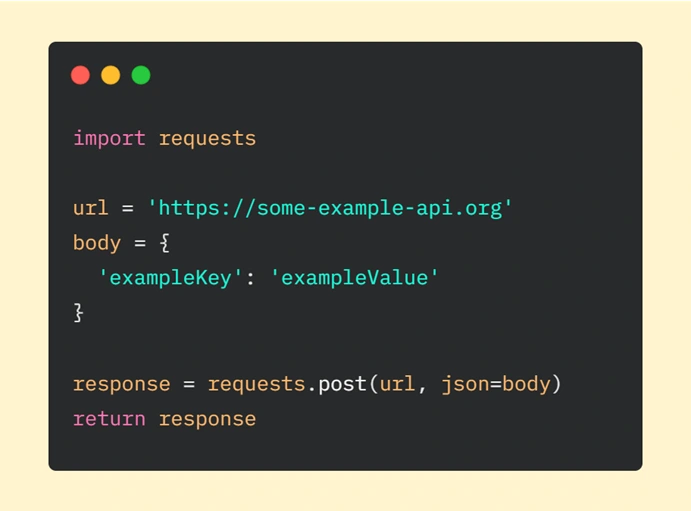
We have to start with importing the ‘requests’ module. Then we are declaring the URL of the request and data we want to send (provided as a dictionary). The next step is to make an HTTP request where we are passing our parameters (url is required, json – optional - it’s a JSON object which will be sent to the mentioned URL). In the end, we are returning the response from the server.
In our car application, this example will be a little expanded. What exactly is hidden behind lines of code responsible for creating a vehicle via API requests? I will focus on the first step of this scenario: 'Car “<car> from the model “<model>” and lacquer color “<color>” is created via API request’ . If we look deeper, we can see step implementation:
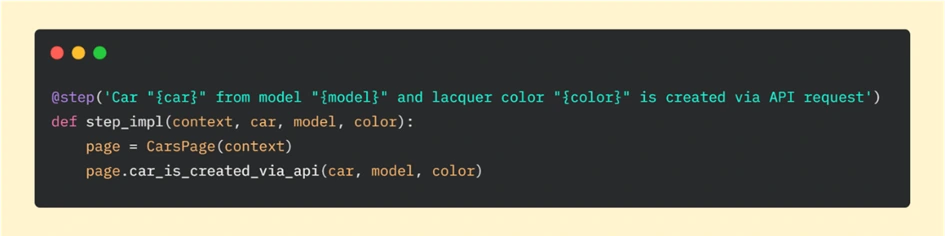
And then if we go further to the car_is_created_via_api function, we can analyze requests sent to API:
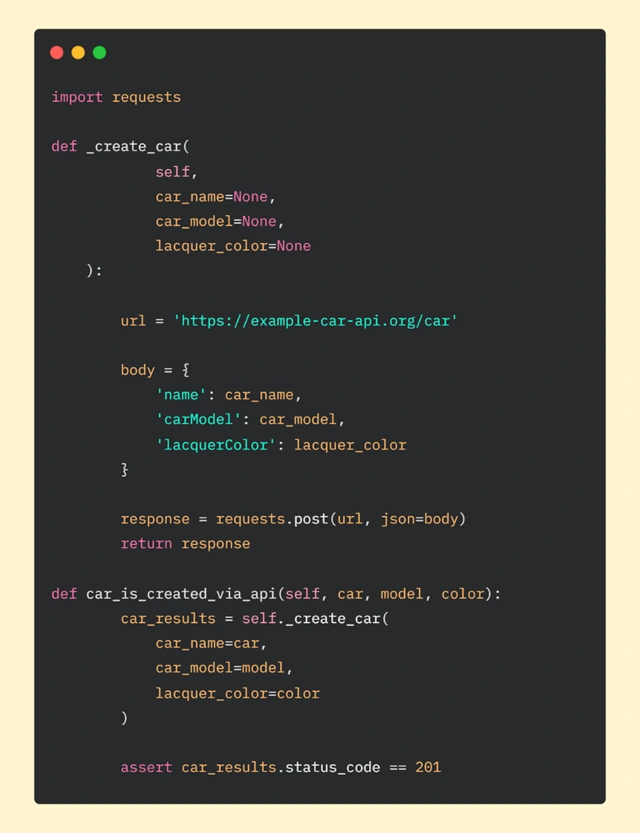
In car_is_created_via_api method, we are calling function _create_car which is responsible for requesting API. We are also passing parameters: car, model, and color. They will be used in the body of our request.
As in the basic example, in _create_car function we are declaring URL (our car API) and body. Then we are making a POST request and in the final step, we are returning the response.
After getting the response from the server, at the end of the car_is_created_function , we want to use assertion to check if we got the correct status code. Getting code 201 means that everything went as we hoped. Another result will tell us that something is wrong and we will be able to quickly (hopefully) find the gap in the code.
Good Team
We went together through the advantages of using API help in the UI automation tests suite and a comparison of two approaches to testing. We also focused on speeding up tests suite execution time using Python library Requests . We believe that after reading this article you can see that API requests can be great companions and you are encouraged to start using this concept in your test automation projects.
Testing iOS applications using Appium, Cucumber, and Serenity - a recipe for quality
iOS devices still claim a significant part of the mobile market, taking up to 22 percent of the sales globally. As many devoted clients come back for new Apple products, there is also a great demand for iOS applications. In this article, we are going to look at ensuring the quality of iOS apps striving for the usage of best practices using Appium, Cucumber and Serenity tools.
Structure
The Page Object Model is one of the best approaches to testing that QA engineers can apply to a test automation project. It is such a way of structuring the code in an automation project that improves code quality and readability, test maintenance and on top of that, it is a great way of avoiding chaos. The basic idea behind it comes to keeping all references to mobile elements and methods performing operations on them in one class file for each page or screen of the app (or web page for non-native web applications).
What are the benefits of this approach, you may ask? Firstly, it makes automation really straightforward. Basically, it means finding elements in our iOS app via inspector and then performing operations on them. Another main advantage is the coherent structure of the project that allows anyone to navigate through it quickly.
Let's take an example of an app that contains recipes. It shows the default cookbook with basic recipes on startup, which will be our first page. From there, a user can navigate to any available recipe, thus marking a second page. On top of that, the app also allows to browse other cookbooks or purchase premium ones, making it the third page and consequently - a page object file.
Similarly, we should create corresponding step definition files. This is not an obligatory practice, but keeping all step definitions in one place causes unnecessary chaos.
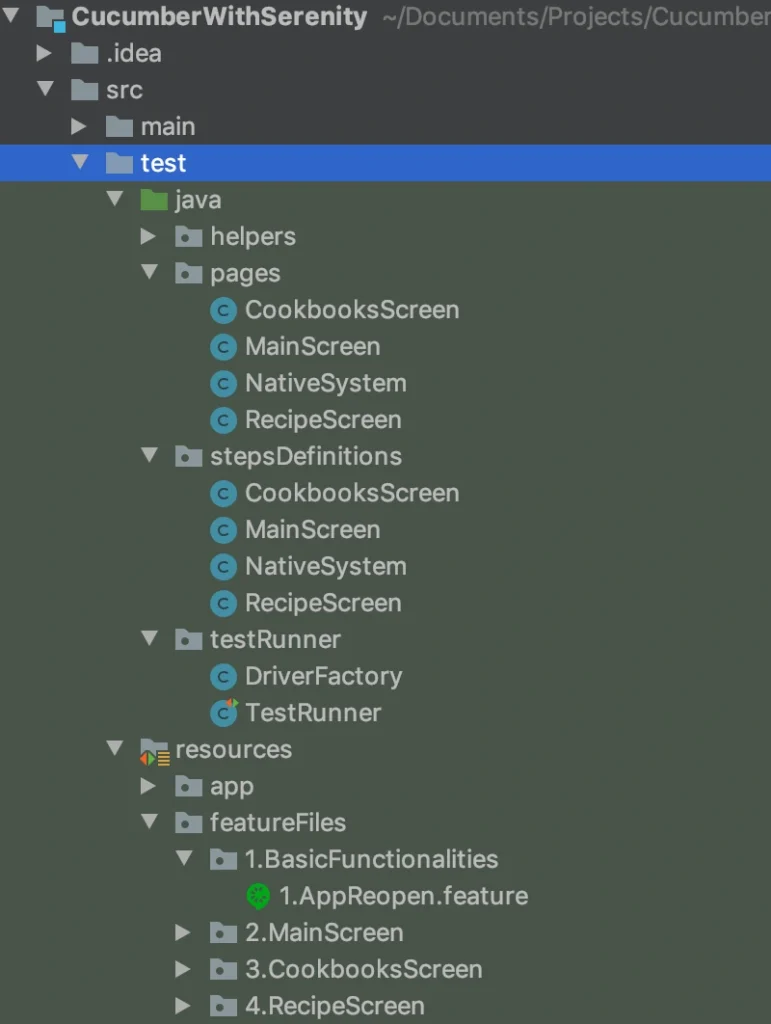
While creating your pages and step definition class files it is advised to choose names that are related to the page (app screen) which contents you are going to work on. Naming these files after a feature or scenario can seem right at first glance, but as the project expands, you will notice more and more clutter in its structure. Adopting the page naming convention ensures that anyone involved in the project can get familiar with it straight away and start collaboration on it in no time. Such practice also contributes to reusability of code - either step definitions or methods/functions.
Contrary to the mentioned step and step definition files, the Cucumber feature files should be named after a feature they verify. Clever, isn’t it? And again, structuring them into directories named in relation to a particular field of the application under test will make the structure more meaningful.
Serenity’s basic concept is to be a 'living documentation'. Therefore, giving test scenarios and feature files appropriate names helps the team and stakeholders understand reports and the entire project better.
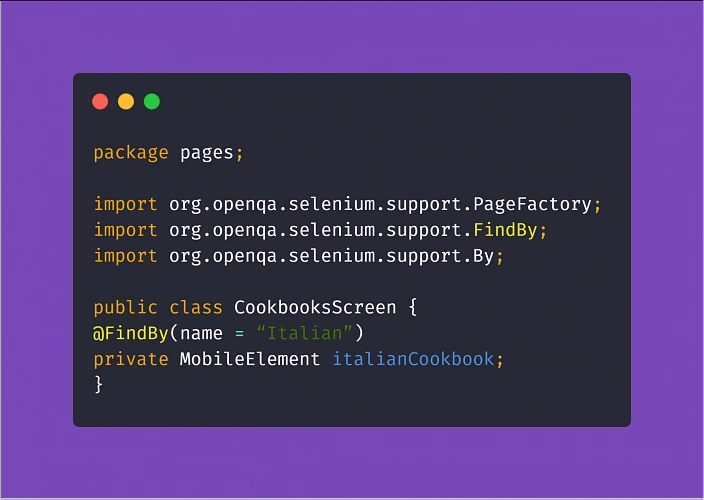
Another ingredient expanding the benefits of the Page Object Model in the test automation project is PageFactory. It is a tool that helps you reduce the coding work and easily put MobileElements locators in code, using @FindBy notation. From there, finding elements for Appium to interact with them in tests is much simpler.
Assertion
Running tests via Appium can be very resource-consuming. To make things easier for your MacOS machine running tests on your iOS device, make sure you are not constantly asserting the visibility of all objects on a page. This practice significantly increases the test execution time, which usually is not the most desirable thing.
What is more, when you do have to check if an element is visible, enabled, clickable, or anything in between - try to avoid locating mobile elements using Xpath. The Appium inspector tip has a valid point! You should do what you can to convince the development team to make an extra effort and assign unique IDs and names to the elements in the app. This will not only make automation testing easier and quicker, consequently making your work as a tester more effective, ultimately resulting in increasing the overall quality of the product. And that is why we are here. Not to mention that the maintenance of the tests (e.g. switching to different locators when necessary) will become much more enjoyable.
Understanding the steps
Another aspect of setting up this kind of project comes down to taking advantage of Cucumber and using Gherkin language.
Gherkin implements a straightforward approach with Given, When, Then notation with the help of the additional And and But which seems fairly easy to use. You could write pretty much anything you want in the test steps of your feature files. Ultimately, the called methods are going to perform actions.
But the reason for using the Behavior Driven Development approach and Cucumber itself is enabling the non-tech people involved in the project to understand what is going on in the tests field. Not only that, writing test scenarios in Given/When/Then manner can also act in your advantage. Such high-level test descriptions delivered by the client or business analyst will get you coding in no time, provided that they are written properly. Here are some helpful tips:
Test scenarios written in Gherkin should focus on the behavior of the app (hence Behavior Driven Development).
Here's an example of how NOT to write test scenarios in Gherkin, further exploring the theme of cookbook application:
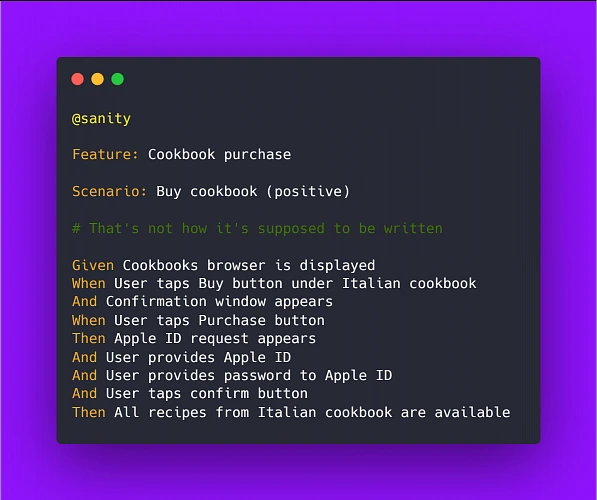
Above example illustrates two bad practices we should avoid: It focuses on the implementation instead of behavior and it uses hard-coded values rather than writing test steps in such a way to enable reusability by changing values within a step.
Therefore, a proper scenario concerning purchasing a cookbook in our example app should look like:
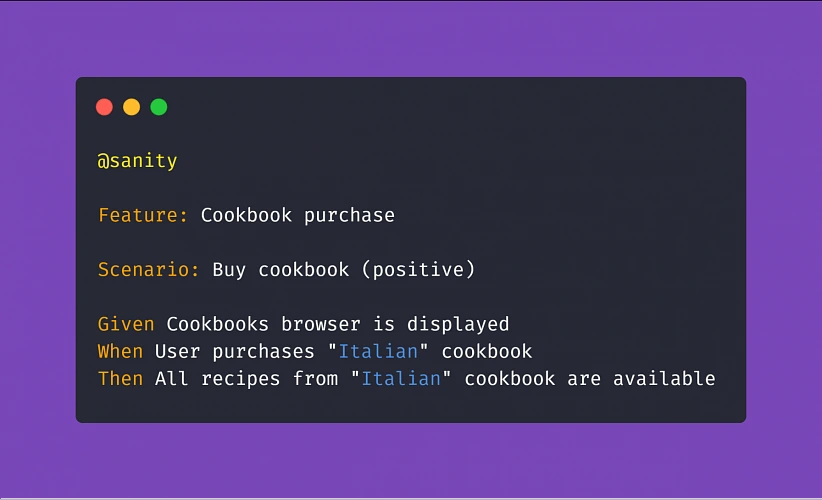
Another example:
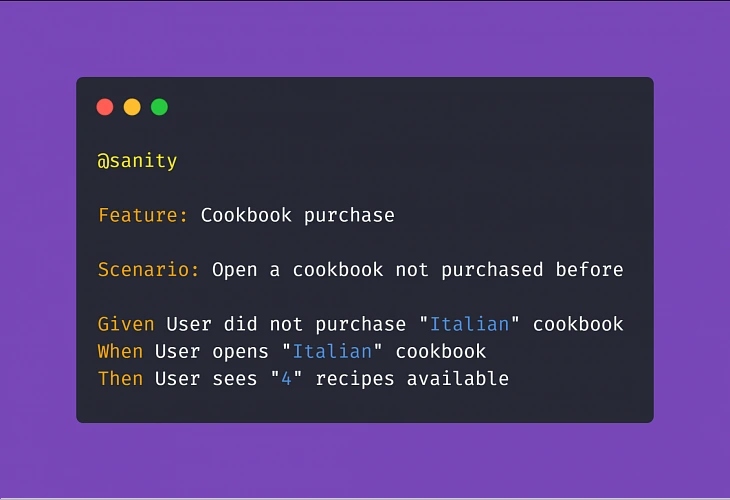
Adopting this approach means less work creating and coding the test steps whenever the implementation of a particular feature changes.
Apart from the main notation of Given/When/Then , Cucumber supports usage of conjunction steps. Using And and But step notations will make the test steps more general and reusable, which results in writing less code and maintaining order within the project. Here is a basic example:
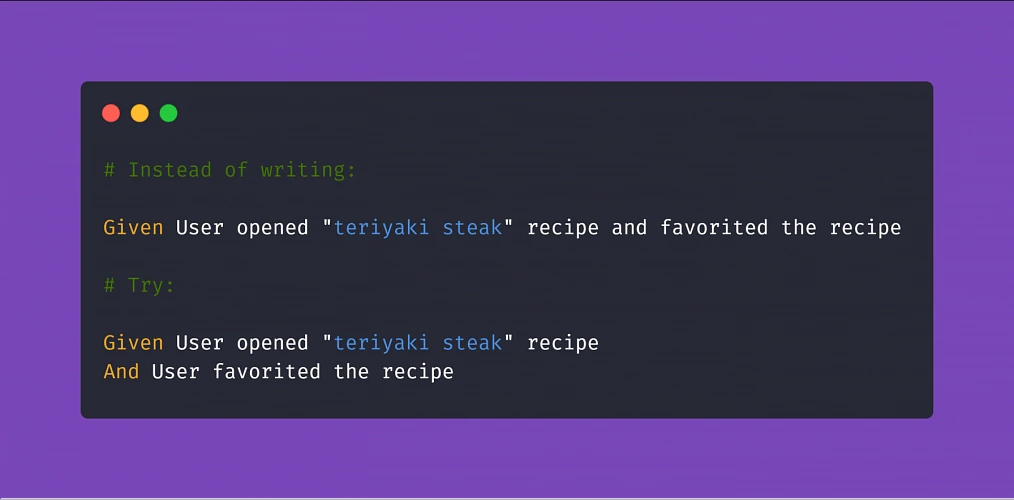
Doing so, if you code the above 'Given' step to locate our recipe element by searching its name, you can reuse it many times just changing the string value in the step (provided that you code the step definition properly later on). On top of that, The 'And' step can be a part of any test scenario that involves such action.
Putting it all together
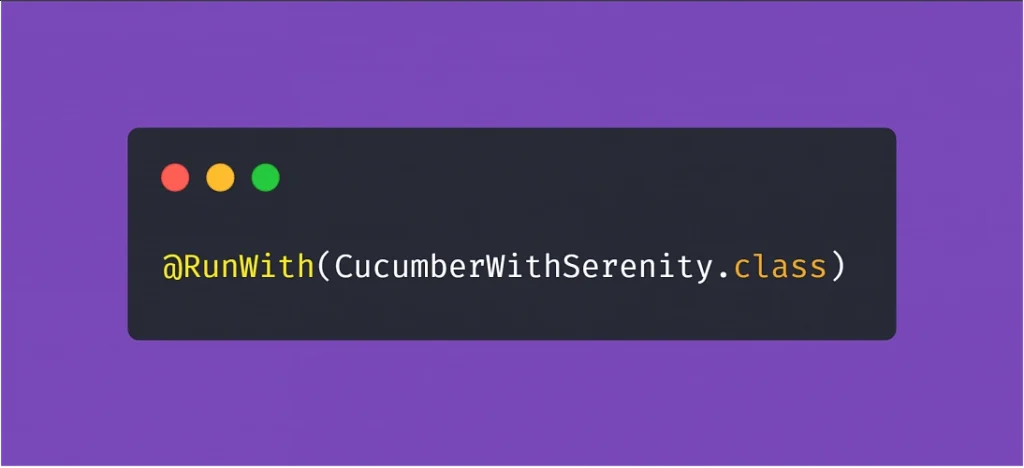
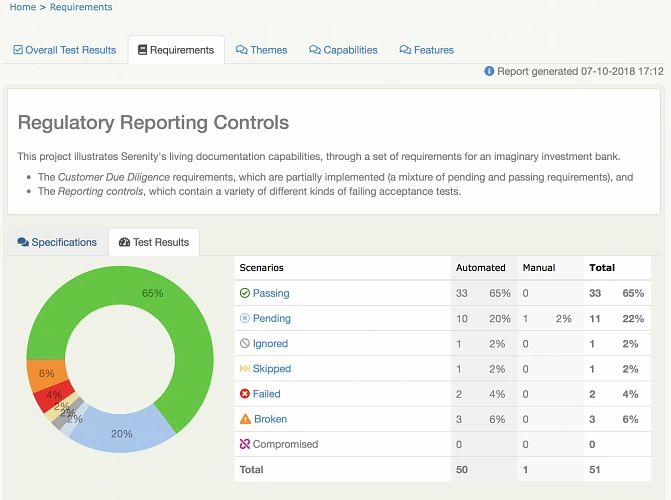
After setting up a project utilizing the practices described above, the most visible parts of using Serenity are the generated test reports. After adopting the @RunWith(CucumberWithSerenity.class) tag in your TestRunner class file, running the test suite will result in Serenity generating an aggregated test results report, which can be useful in evaluating the quality of the app under test and presenting the status of the product to the stakeholders or the development team.
Appium, Cucumber, Serenity - summary
As you can see, the concept of best practices in automation testing can be summarized in three words: reusability, readability, and performance. Reusability means fewer coding, consequently diminishing the time needed to finish the job. Readability improves understanding, which is crucial to ensure that the product does what it needs to do. Finally, performance saves execution time and improves stability. All three contributing not only to the quality of the test automation project but have a significant role in enhancing the overall quality of the delivered app.
Sources:
Practical tips to testing React apps with Selenium
If you ever had to write some automation scripts for an app with the frontend part done in React and you used Selenium Webdriver to get it to work, you’ve probably noticed that those two do not always get along very well. Perhaps you had to ‘hack’ your way through the task, and you were desperately searching for solutions to help you finish the job. I’ve been there and done that – so now you don’t have to. If you’re looking for a bunch of tricks which you can learn and expand your automation testing skillset, you’ve definitely come to the right place. Below I’ll share with you several solutions to problems I’ve encountered in my experience with testing against React with Selenium . Code examples will be presented for Python binding.
They see me scrolling
First, let’s take a look at scrolling pages. To do that, the solution that often comes to mind in automation testing is using JavaScript. Since we’re using Python here, the first search result would probably suggest using something like this:
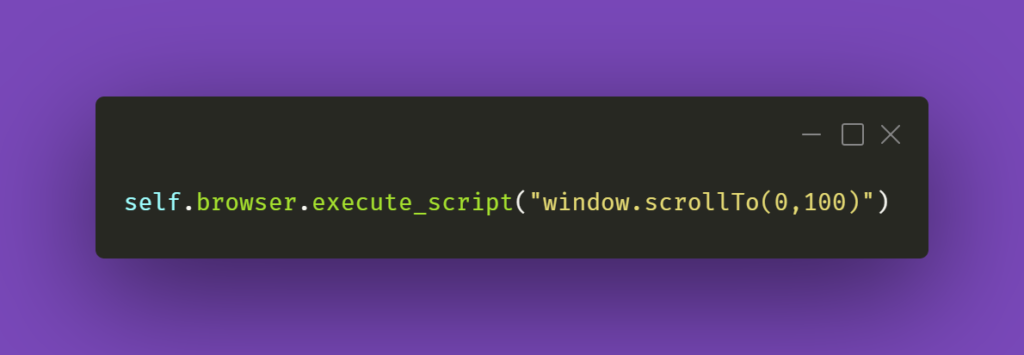
The first argument in the JS part is the number of pixels horizontally, and the second one is the number of pixels vertically. If we just paste window.scrollTo(0,100) into browsers’ console with some webpage opened, the result of the action will be scrolling the view vertically to the pixel position provided.
You could also try the below line of code:
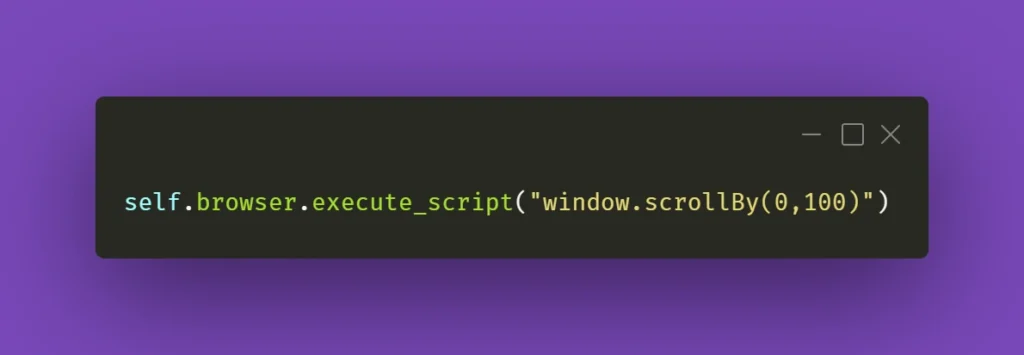
And again, you can see how it works by pasting window.scrollBy(0,100) into browsers’ console – the page will scroll down by the number of pixels provided. If you do this repeatedly, you’ll eventually reach the bottom of the page.
However, that might not always work wonders for you. Perhaps you do not want to scroll the whole page, but just a part of it – the scrollbars might be confusing, and when you think it’s the whole page you need to scroll, it might be just a portion of it. In that case, here’s what you need to do. First, locate the React element you want to scroll. Then, make sure it has an ID assigned to it. If not, do it yourself or ask your friendly neighborhood developer to do it for you. Then, all you have to do is write the following line of code:
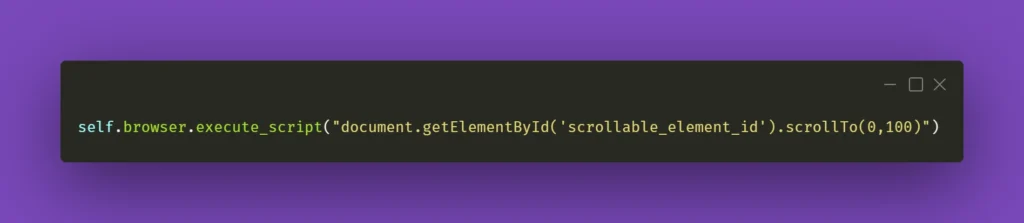
Obviously, don’t forget to change ‘scrollable_element_id’ to an ID of your element. That will perform a scroll action within the selected element to the position provided in arguments. Or, if needed, you can try .scrollBy instead of .scrollTo to get a consistent, repeatable scrolling action.
To finish off, you could also make a helper method out of it and call it whenever you need it:
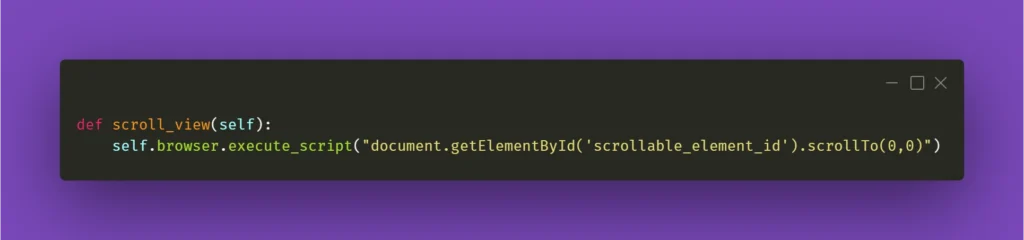
I’ll be mentioning the above method in the following paragraph, so please keep in mind what scroll_view is about.
Still haven’t found what you were looking for
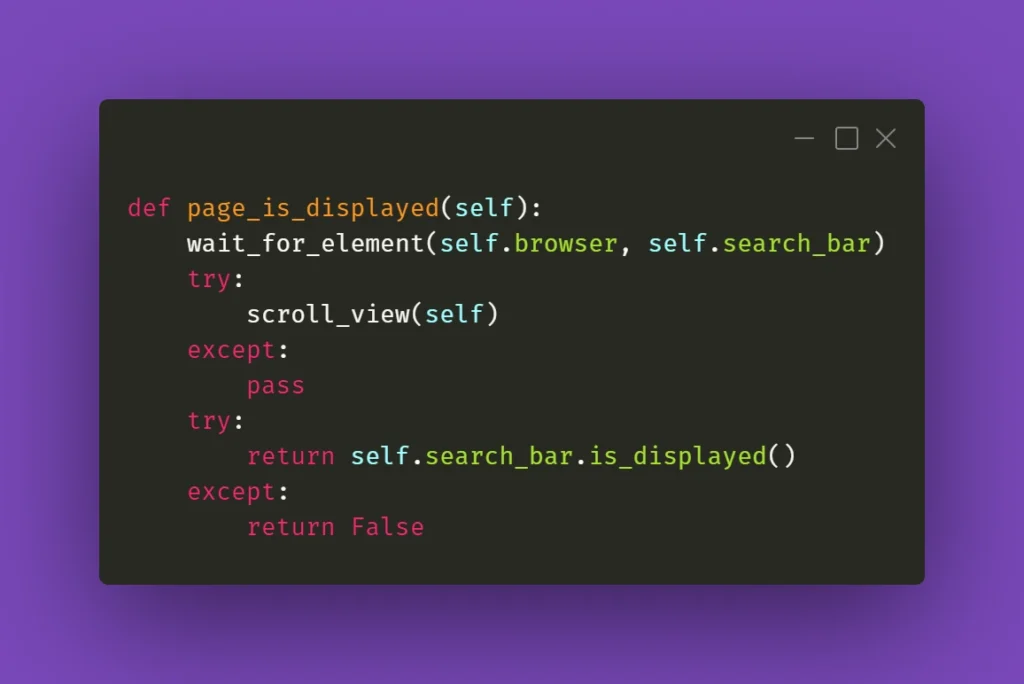
Now that you have moved scrolling problems out of the way, locating elements and interacting with them on massive React pages should not bother you anymore, right? Well, not exactly. If you need to perform some action on an element that exists within a page, it has to be scrolled into view so you can work with it. And Selenium does not automatically do that. Let’s assume that you’re working on a web app that has various sub-pages, or tabs. Each of those tabs contains elements of a different sort but arranged in similar tables with search bars on top of each table at the beginning of the tab. Imagine the following scenario: you navigate to the first tab, scroll the view down, then navigate to the second tab, and you want to use the search bar at the top of the page. Sounds easy, doesn’t it?
What you need to be aware of is the React’s feature which does not always move the view to the top of the page after switching subpages of the app. In this case, to interact with the aforementioned search box you need to scroll the view to the starting position. That’s why scroll_view method in previous paragraph took (0,0) as .scrollTo arguments. You could use it before interacting with an element just to make sure it’s in the view and can be found by Selenium. Here’s an example:
When it doesn’t click
Seems like a basic action like clicking on an element should be bulletproof and never fail. Yet again, miracles happen and if you’re losing your mind trying to find out what’s going on, remember that Selenium doesn’t always work great with React. If you have to deal with some stubborn element, such as a checkbox, for example, you could just simply make the code attempt the action several times:
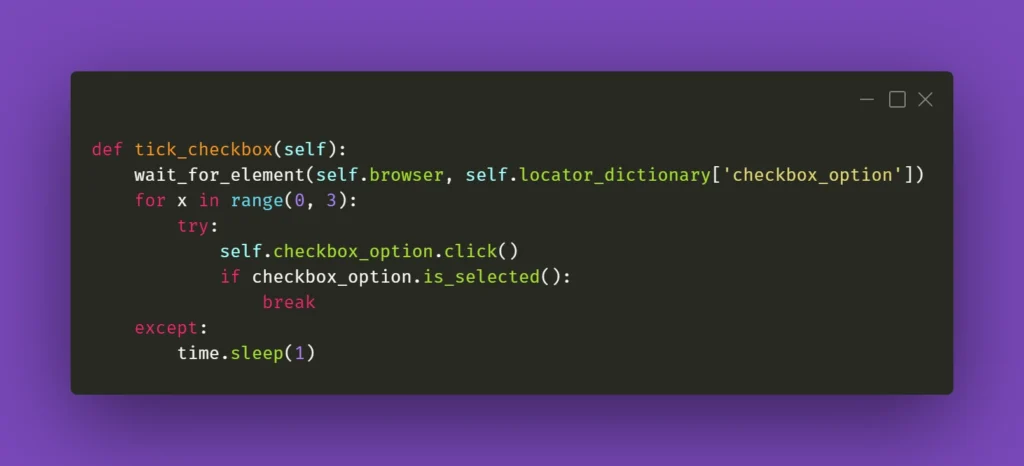
The key here is the if statement; it has to verify whether the requested action had actually taken place. In the above case, a checkbox is selected, and Selenium has a method for verifying that. In other situations, you could just provide a specific selector which applies to a particular element when it changes its state, eg., an Xpath similar to this:
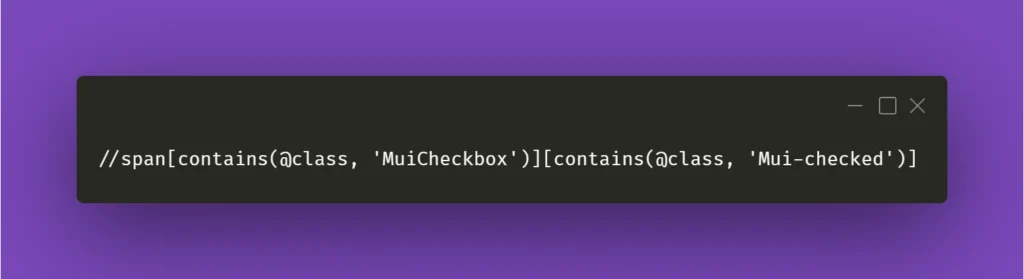
In the above example, Xpath contains generic Material-UI classes, but it could be anything as long as it points out the exact element you needed when it changed its state to whichever you wanted.
Clear situation
Testing often includes dealing with various forms that we need to fill and verify. Fortunately, Selenium’s send_keys() method usually does the job. But when it doesn’t, you could try clicking the text field before inputting the value:
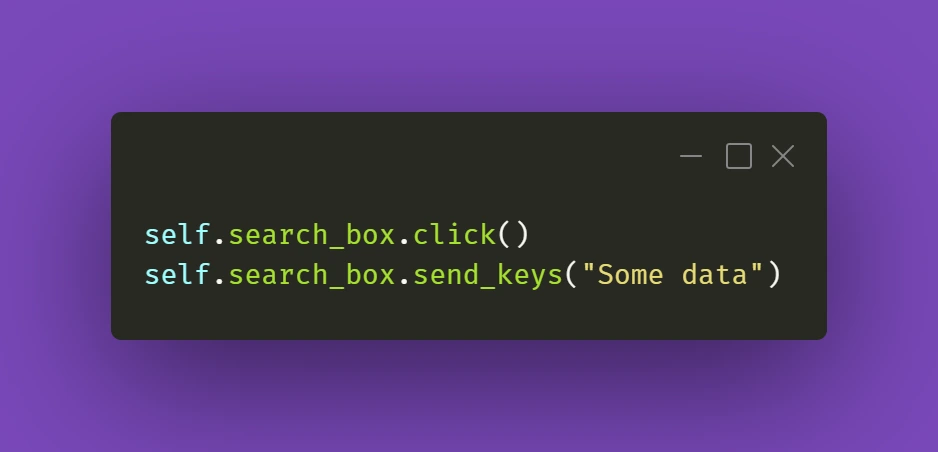
It's a simple thing to do, but we might sometimes have the tendency to forget about such trivial solutions. Anyway, it gets the job done.
The trickier part might actually be getting rid of data in already filled out forms. And Selenium's .clear() method doesn't cooperate as you would expect it to do. If getting the field into focus just like in the above example doesn't work out for you:
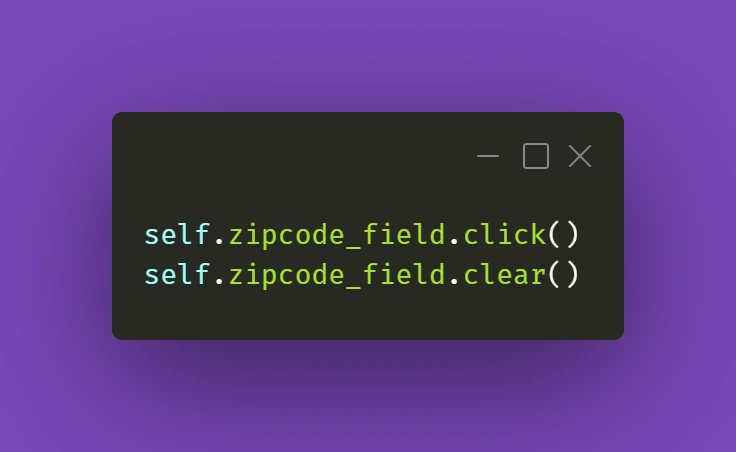
there is a solution that uses some JavaScript (again!). Just make sure your cursor is focused on the field you want to clear and use the following line:
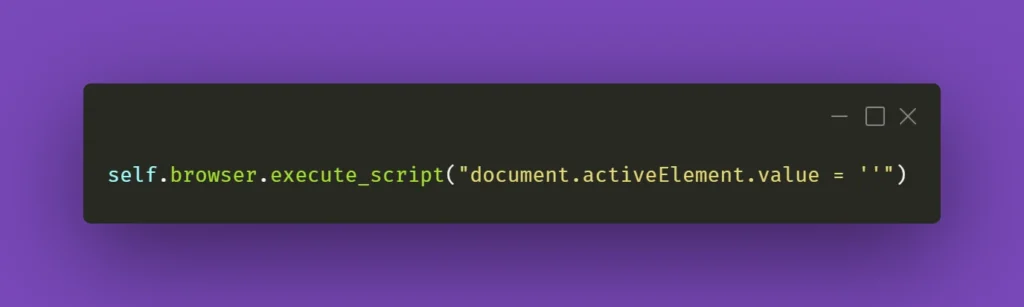
You can also wrap it into a nifty little helper as I did:
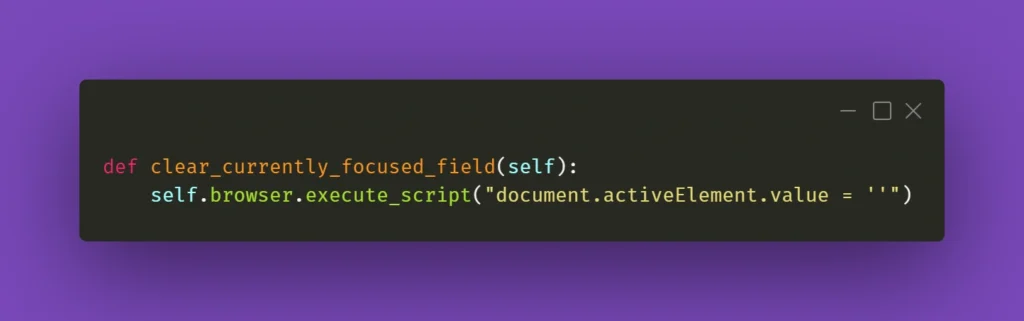
While this should work fine 99% of the time, there might be a situation with a stubborn text field where React quickly restores the previous value. What you can do in such a situation is experiment with sending an empty string to that field right after clearing it or sending some whitespace to it:
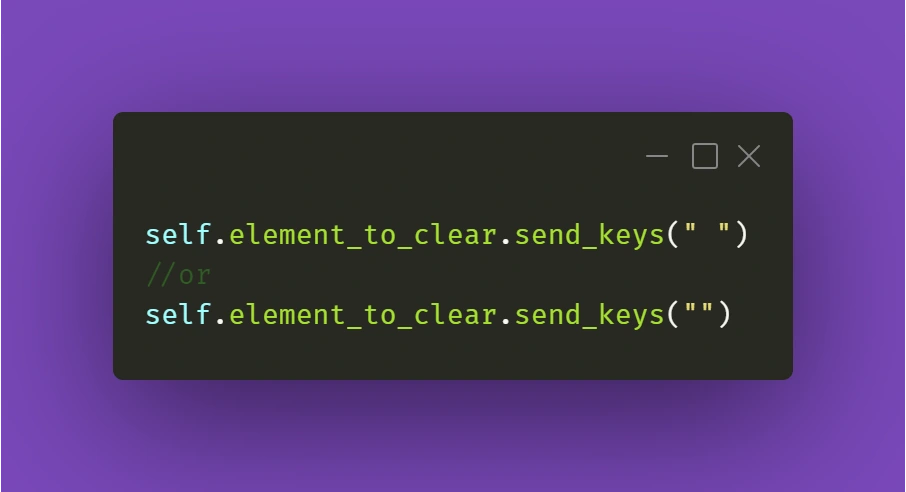
Just make sure it works for you!
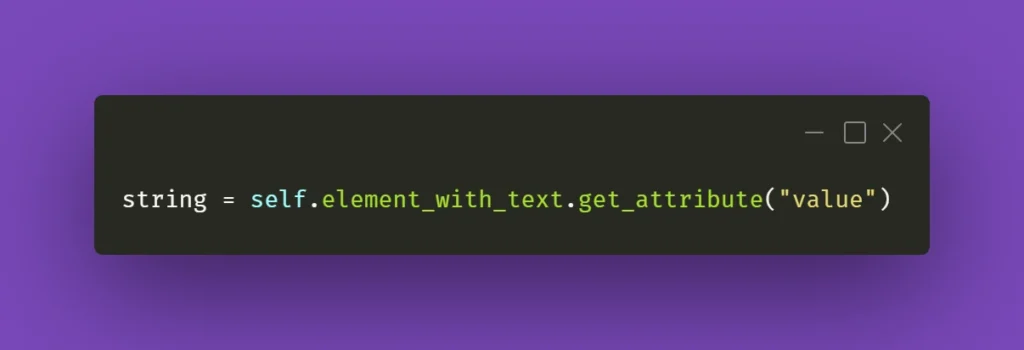
Continuing the topic of the text in various fields, which sometimes have to be verified or checked after particular conditions are met, sometimes you need to make sure you're using the right method to extract the text value of an element. They might come in different forms, but the ones below are used quite often. Text in element could be extracted by Selenium with .get_attribute() method:
Or sometimes it's just enough to use .text() method:
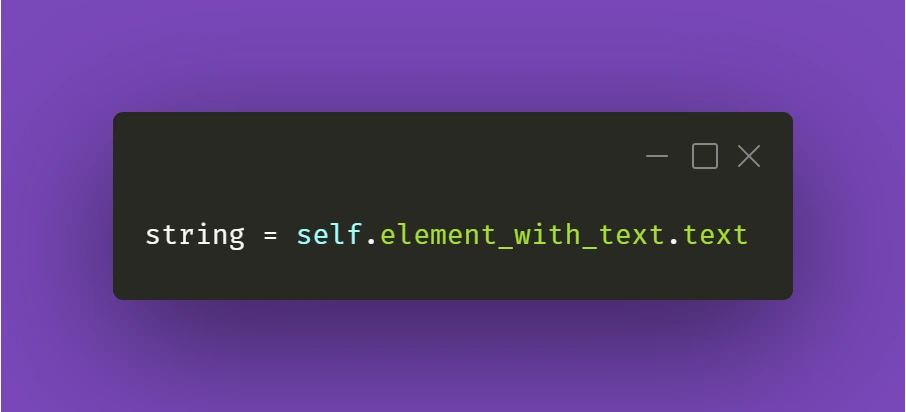
It all depends on the context and the element you're working with. So don't fall into the trap of assuming that all forms and elements in the app are exactly the same. Always check twice, you'll thank yourself for that, and in the end, you'll save tons of time!
React Apps - Keep on testing!
Hopefully, the tips and tricks I presented above will prove most useful for you in your testing projects. There's definitely more to share within the testing field, so make sure you stay tuned in for other articles on our blog!
Interested in our services?
Reach out for tailored solutions and expert guidance.