

Adrian Poć, highly skilled Quality Consultant at Grape Up. He specializes in a holistic approach to the quality of delivered solutions, starting from processes, through automatic and manual tests, and ending with working with requirements.
Read articles
In-app purchases in iOS apps – a tester’s perspective
Year after year, Apple’s new releases of mobile devices gain a decent amount of traction in tech media coverage and keep attracting customers to obtain their quite pricey products. Promises of superior quality, straightforwardness of the integrated ecosystem, and inclusion of new, cutting edge technologies urge the company’s longtime fans and new customers alike to upgrade their devices to Californian designed phones, tablets and computers.
Resurgence
Focusing on the mobile market alone, it is impossible to neglect the significant raise in Apple’s iOS market share of mobile operating systems. Its major competitor, Google’s Android has noted 70.68% of mobile market share in April 2020 – which is around 6 percentage points less than in October 2019. On the other hand, iOS, which noted 22.09% of the market share around the same time, recently has risen to 28.79%. This trend surely pleases Apple’s board, along with anyone who strives to monetize their app ideas in App store.
Gaining revenue through in-app purchases sounds like a brilliant idea, but it requires plenty of planning, calculating risks, and evaluating funds for the project. Before publishing the software product, an idea has to be conceived, marketed, developed, and tested. Each step of this process of making an app aimed at providing paid content differs from the process of creating a custom-ordered software. And that also includes testing.
At what cost?
But wait! Testing usually includes lots of repetition. So that would mean testers have to go through many transactions. Doesn’t that entail spending lots of money? Well, not exactly. Apple provides development teams with their own in-app purchase testing tool, Sandbox. But using it doesn’t make testing all fun and games.
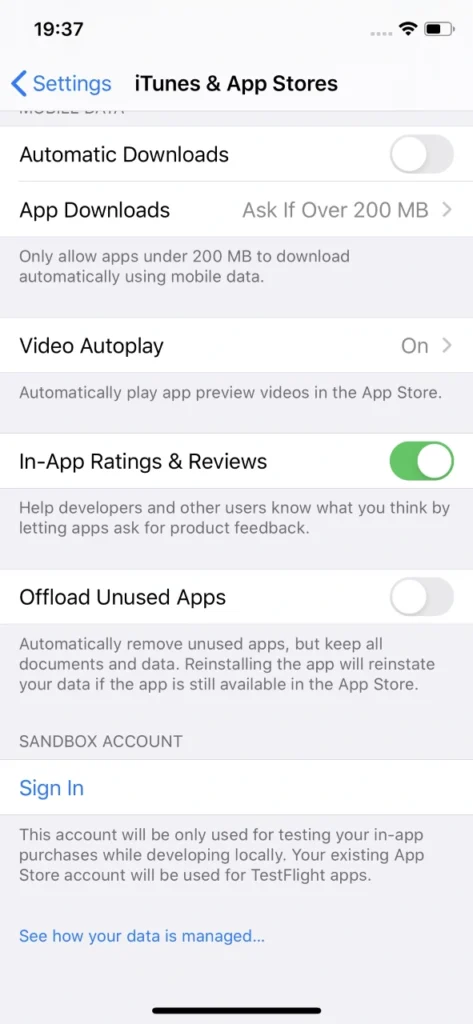
Sandbox allows for local development of in-app purchases without spending a dime on them. That happens by supplementing the ‘real’ Appstore account with the Sandbox one. Sounds fantastic, doesn’t it? But unfortunately, there are some inconveniences behind that.
If it ain’t broke...
First of all, Sandbox accounts have to be created manually via iTunes Connect, which leaves much to be desired in terms of performance. These accounts require an email in a valid format. Testers will need plenty of Sandbox accounts because it is actually quite easy to ‘use them up’, especially when tested software has its own sign-in system (not related to Apple ID). If by design said app account is also associated with In-app purchase, each app account will require a new Sandbox account.

Unfortunately, Apple’s Sandbox accounts can get really tricky to log into. When you’re trying to sign in to another Sandbox account, which was probably named similarly as all previous one for convenience, you’d think your muscle memory will allow you to type in the password without looking at the screen. Nothing more wrong. Sometimes, when you type in the credentials which consist of an email and a password, check twice and hit Sign In button in Sandbox login popover, nothing happens.
User is not logged in, not even a sign in error is displayed. And you try again. Every character is exactly the same as before. And eventually, you manage to log in. It’s not really a big of a deal unless you lose your temper easily testing manually, but a simple message informing why Sandbox login failed would be much more user-friendly. In automated tests you could just write the code to try to log in until the email address used as login is displayed in the Sandbox account section in iOS settings, which means that the login was successful. It’s not something testers can’t live with, but addressing the issue by Apple would greatly improve the experience of working in iOS development.
Cryptic writings
Problems arise when notifications informing that a particular Sandbox user is subscribed to an auto-renewable subscription are not delivered by Apple. Therefore, many subscription purchase attempts have to be made to actually make sure whether the development of the app went the correct way and it’s just Apple’s own system’s error, not a bug inside the app.
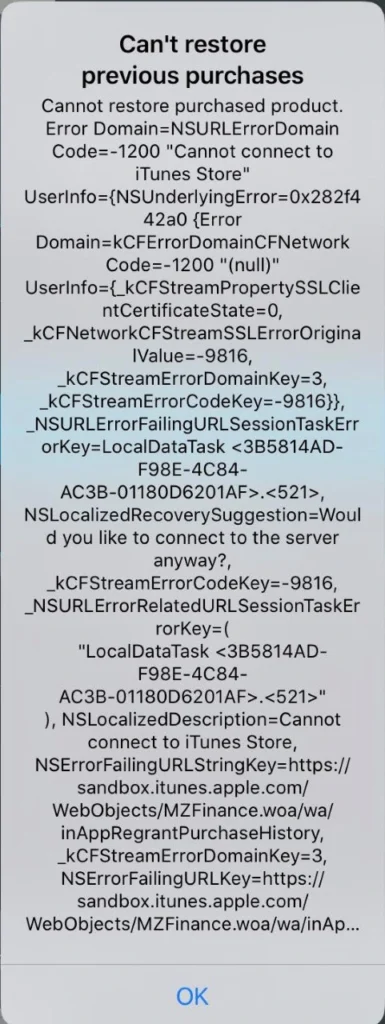
Speaking of errors – during testing of in-app purchase features, it can become really difficult to point out to developers what went wrong to help them debug the problem. Errors displayed are very cryptic and long; therefore, investigating the root cause of the problem can consume a substantial amount of time. There are two main reasons for that: there’s no error documentation created by Apple for those long error messages or the message displayed is very generic.
Combining this with problems which include performance drops in ‘prime time’, problems with receiving server notifications, e.g. for Autorenewing Subscriptions or simply inability to connect to iTunes store and a simple task of testing monthly subscription can turn into a major regression testing suite.
Hey, Siri...
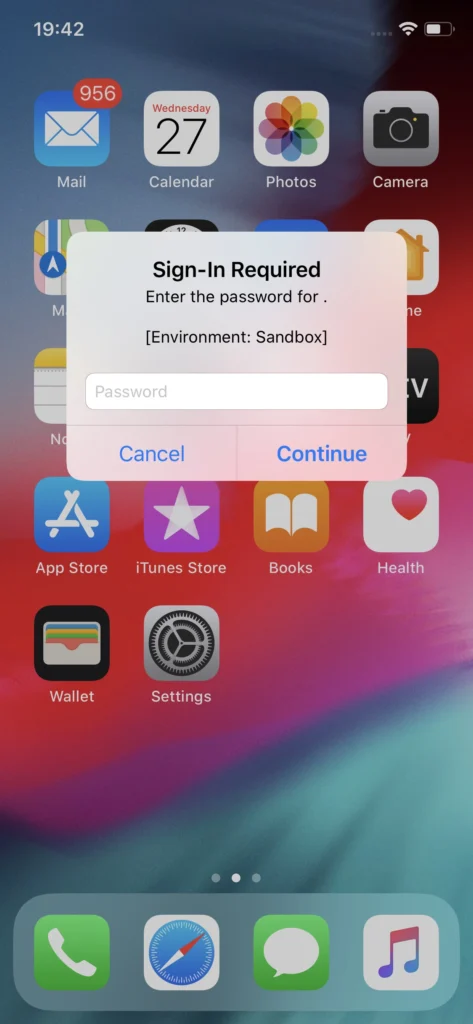
Another issue with Sandbox testing that is not so convenient to work with and not so obvious to workaround are the irritating Sandbox login prompts. These occur randomly for the eternity of your app’s development cycle if the In-app purchases feature in the app under test includes auto-renewable subscriptions. What is problematic is that these login prompts pop-up at any given time, not just when the app is used or dropped to the background. Well, if you’re patient you can learn to live with it and dismiss it when it shows up. But problems may occur when the device used for testing said app is also utilized as a real device in automated tests, e.g. in conjunction with Appium.
This can be addressed by setting up Appium properties in testing framework to automatically dismiss system popups. That could prove somewhat helpful if the test suite doesn’t include any other interactions with system popups. Deleting the application which includes auto-renewable subscriptions from the device gets rid of the random Sandbox login prompts on the device, but that’s not how testing works. Another workaround might be building the app with subscription part removed, which requires additional work on developers’ side. These login prompts are surely a major problem which Apple should address.
Send reinforcements
Despite all that, developers and testers alike can and eventually will get through the tedious process of developing and ensuring the quality of in-app purchases in Apple’s ecosystem . A good tactic for this in manual testing is to work out a solid testing routine, which will allow for quicker troubleshooting. Being cautious about each step in the testing scenario and monitoring the environment differences such as being logged in with proper Sandbox account instead of regular Apple ID, an appropriate combination of app account and the Sandbox account or the state of the app in relation to purchases made (whether an In-app purchase has been made within a particular installation or not) is key to understanding whether the application does what is expected and transactions are successful.
While Silicon Valley’s giant rises in the mobile market again, more and more ideas will be monetized in Appstore, making profits not only for the developers but also directly for Apple, which collects a hefty portion of the money spent on apps and paid extras. Let’s hope that sooner than later Apple will address the issues that have been annoying development teams for years now and make their jobs a bit easier.
Sources:
Practical tips to testing React apps with Selenium
If you ever had to write some automation scripts for an app with the frontend part done in React and you used Selenium Webdriver to get it to work, you’ve probably noticed that those two do not always get along very well. Perhaps you had to ‘hack’ your way through the task, and you were desperately searching for solutions to help you finish the job. I’ve been there and done that – so now you don’t have to. If you’re looking for a bunch of tricks which you can learn and expand your automation testing skillset, you’ve definitely come to the right place. Below I’ll share with you several solutions to problems I’ve encountered in my experience with testing against React with Selenium . Code examples will be presented for Python binding.
They see me scrolling
First, let’s take a look at scrolling pages. To do that, the solution that often comes to mind in automation testing is using JavaScript. Since we’re using Python here, the first search result would probably suggest using something like this:
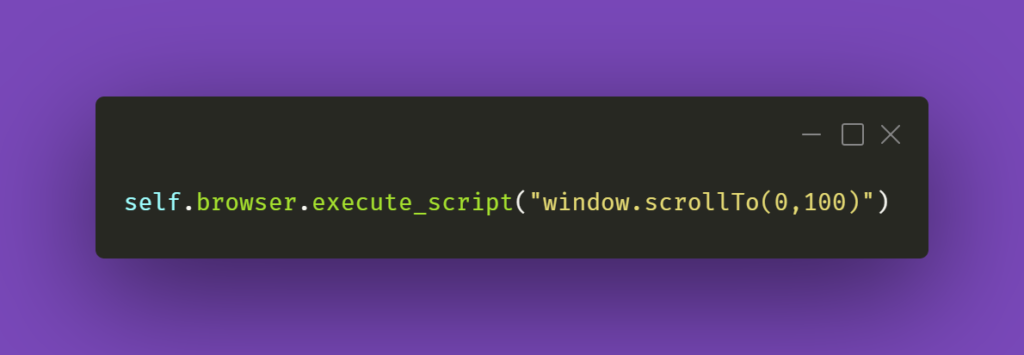
The first argument in the JS part is the number of pixels horizontally, and the second one is the number of pixels vertically. If we just paste window.scrollTo(0,100) into browsers’ console with some webpage opened, the result of the action will be scrolling the view vertically to the pixel position provided.
You could also try the below line of code:
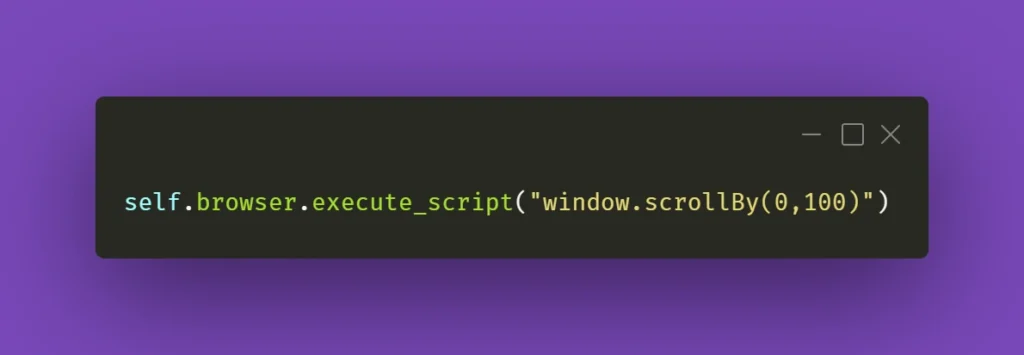
And again, you can see how it works by pasting window.scrollBy(0,100) into browsers’ console – the page will scroll down by the number of pixels provided. If you do this repeatedly, you’ll eventually reach the bottom of the page.
However, that might not always work wonders for you. Perhaps you do not want to scroll the whole page, but just a part of it – the scrollbars might be confusing, and when you think it’s the whole page you need to scroll, it might be just a portion of it. In that case, here’s what you need to do. First, locate the React element you want to scroll. Then, make sure it has an ID assigned to it. If not, do it yourself or ask your friendly neighborhood developer to do it for you. Then, all you have to do is write the following line of code:
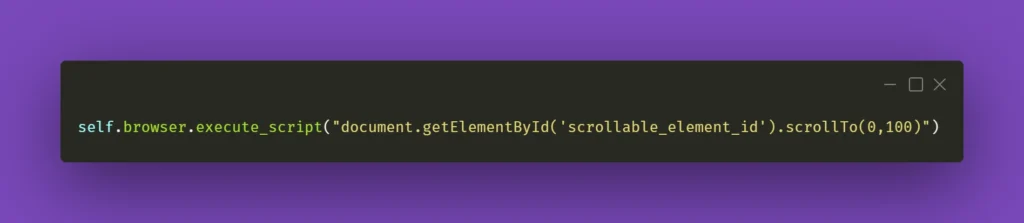
Obviously, don’t forget to change ‘scrollable_element_id’ to an ID of your element. That will perform a scroll action within the selected element to the position provided in arguments. Or, if needed, you can try .scrollBy instead of .scrollTo to get a consistent, repeatable scrolling action.
To finish off, you could also make a helper method out of it and call it whenever you need it:
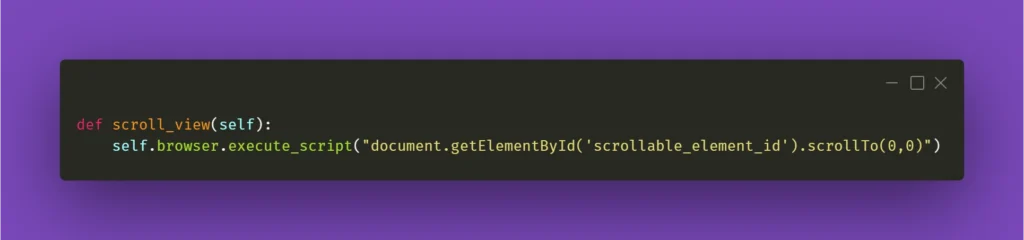
I’ll be mentioning the above method in the following paragraph, so please keep in mind what scroll_view is about.
Still haven’t found what you were looking for
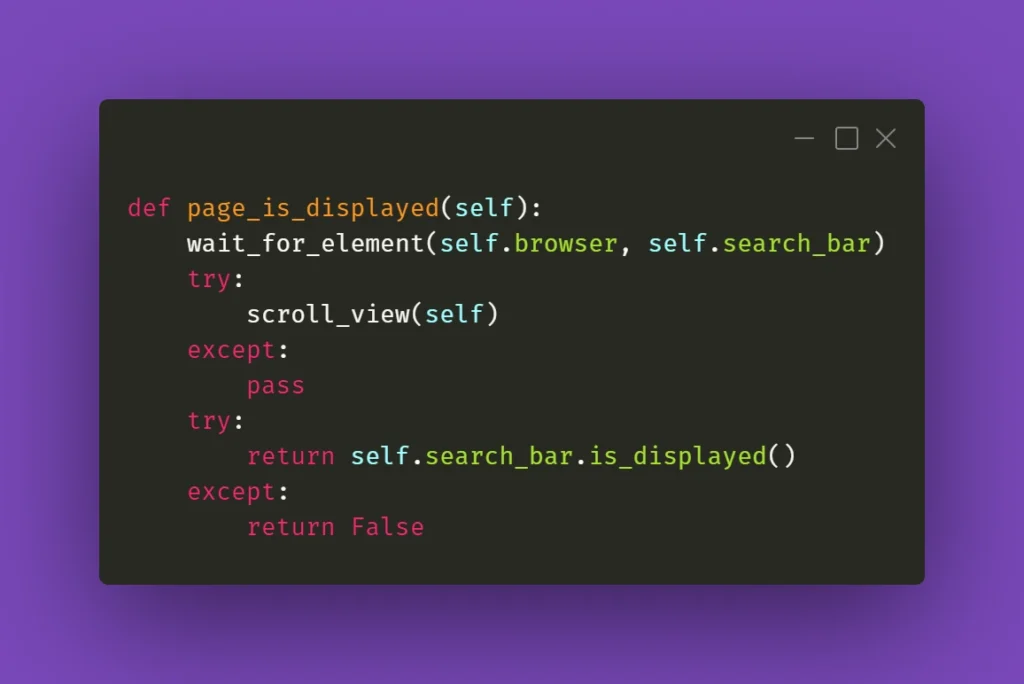
Now that you have moved scrolling problems out of the way, locating elements and interacting with them on massive React pages should not bother you anymore, right? Well, not exactly. If you need to perform some action on an element that exists within a page, it has to be scrolled into view so you can work with it. And Selenium does not automatically do that. Let’s assume that you’re working on a web app that has various sub-pages, or tabs. Each of those tabs contains elements of a different sort but arranged in similar tables with search bars on top of each table at the beginning of the tab. Imagine the following scenario: you navigate to the first tab, scroll the view down, then navigate to the second tab, and you want to use the search bar at the top of the page. Sounds easy, doesn’t it?
What you need to be aware of is the React’s feature which does not always move the view to the top of the page after switching subpages of the app. In this case, to interact with the aforementioned search box you need to scroll the view to the starting position. That’s why scroll_view method in previous paragraph took (0,0) as .scrollTo arguments. You could use it before interacting with an element just to make sure it’s in the view and can be found by Selenium. Here’s an example:
When it doesn’t click
Seems like a basic action like clicking on an element should be bulletproof and never fail. Yet again, miracles happen and if you’re losing your mind trying to find out what’s going on, remember that Selenium doesn’t always work great with React. If you have to deal with some stubborn element, such as a checkbox, for example, you could just simply make the code attempt the action several times:
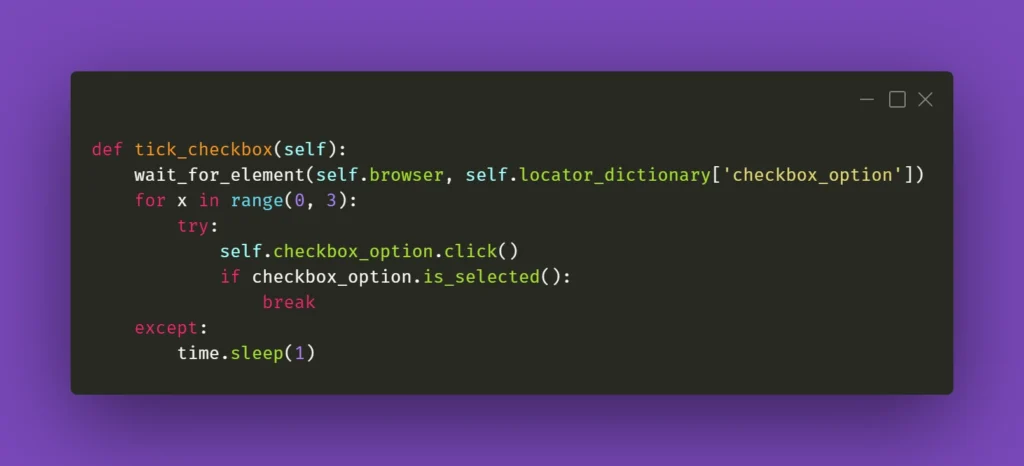
The key here is the if statement; it has to verify whether the requested action had actually taken place. In the above case, a checkbox is selected, and Selenium has a method for verifying that. In other situations, you could just provide a specific selector which applies to a particular element when it changes its state, eg., an Xpath similar to this:
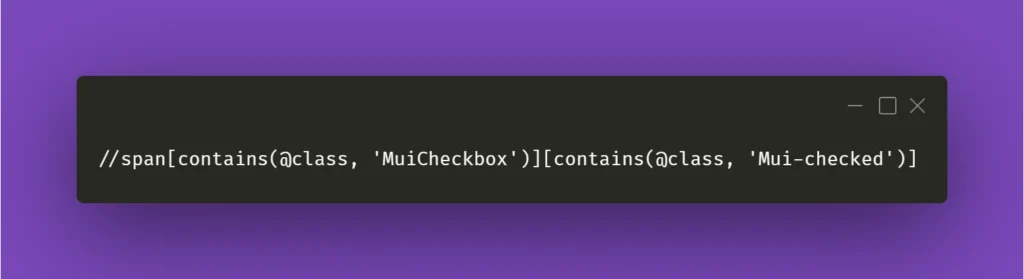
In the above example, Xpath contains generic Material-UI classes, but it could be anything as long as it points out the exact element you needed when it changed its state to whichever you wanted.
Clear situation
Testing often includes dealing with various forms that we need to fill and verify. Fortunately, Selenium’s send_keys() method usually does the job. But when it doesn’t, you could try clicking the text field before inputting the value:
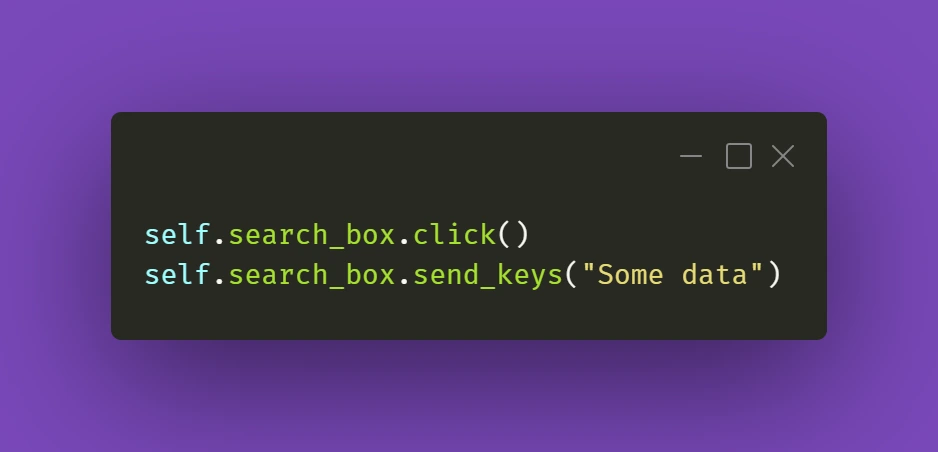
It's a simple thing to do, but we might sometimes have the tendency to forget about such trivial solutions. Anyway, it gets the job done.
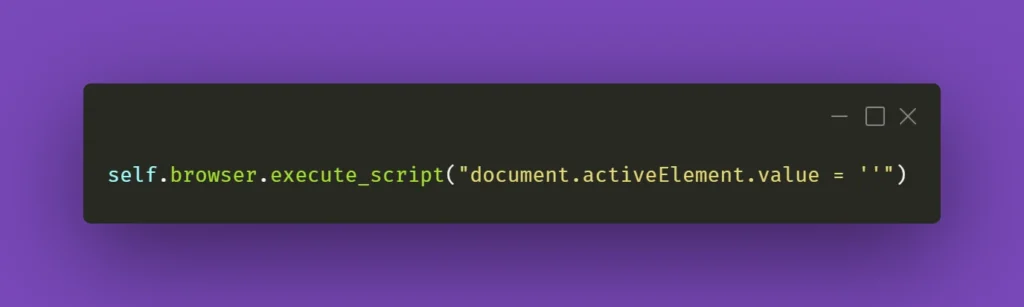
The trickier part might actually be getting rid of data in already filled out forms. And Selenium's .clear() method doesn't cooperate as you would expect it to do. If getting the field into focus just like in the above example doesn't work out for you:
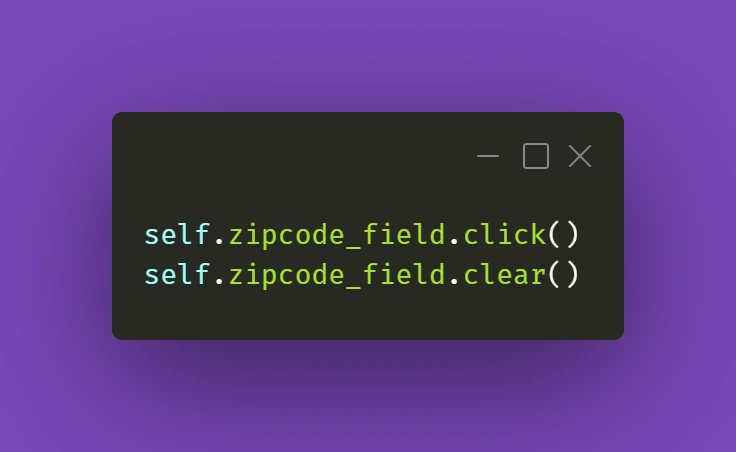
there is a solution that uses some JavaScript (again!). Just make sure your cursor is focused on the field you want to clear and use the following line:
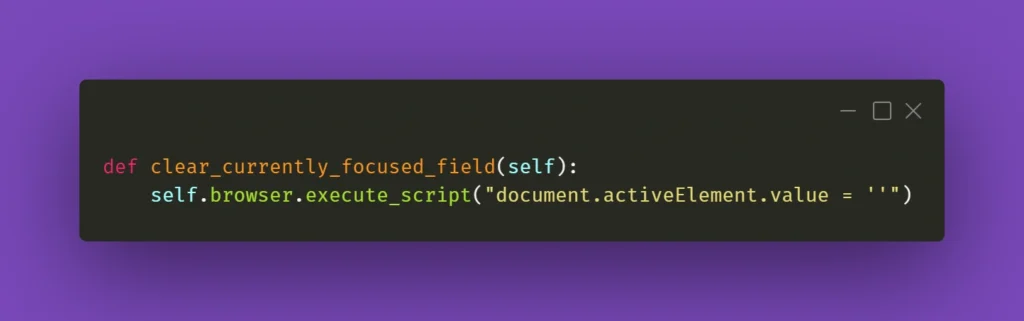
You can also wrap it into a nifty little helper as I did:
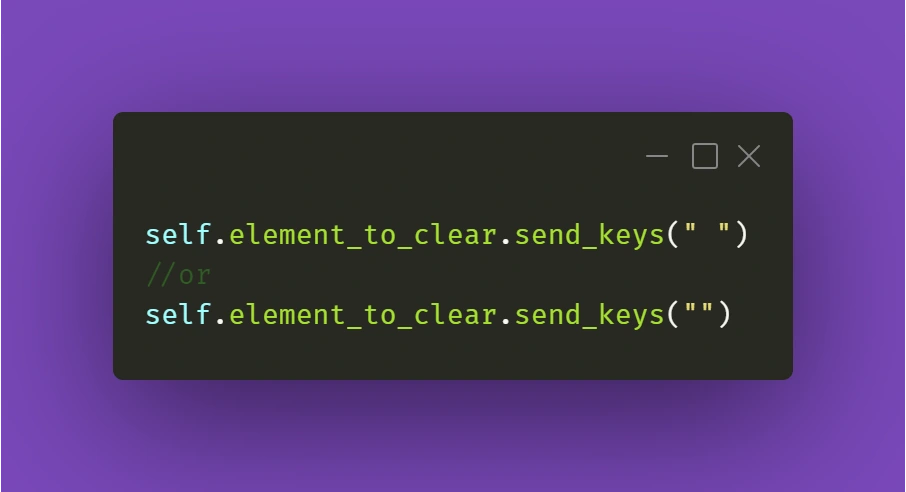
While this should work fine 99% of the time, there might be a situation with a stubborn text field where React quickly restores the previous value. What you can do in such a situation is experiment with sending an empty string to that field right after clearing it or sending some whitespace to it:
Just make sure it works for you!
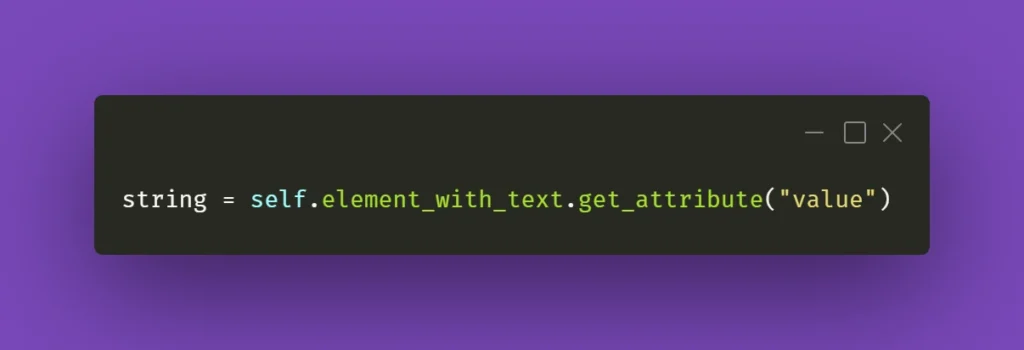
Continuing the topic of the text in various fields, which sometimes have to be verified or checked after particular conditions are met, sometimes you need to make sure you're using the right method to extract the text value of an element. They might come in different forms, but the ones below are used quite often. Text in element could be extracted by Selenium with .get_attribute() method:
Or sometimes it's just enough to use .text() method:
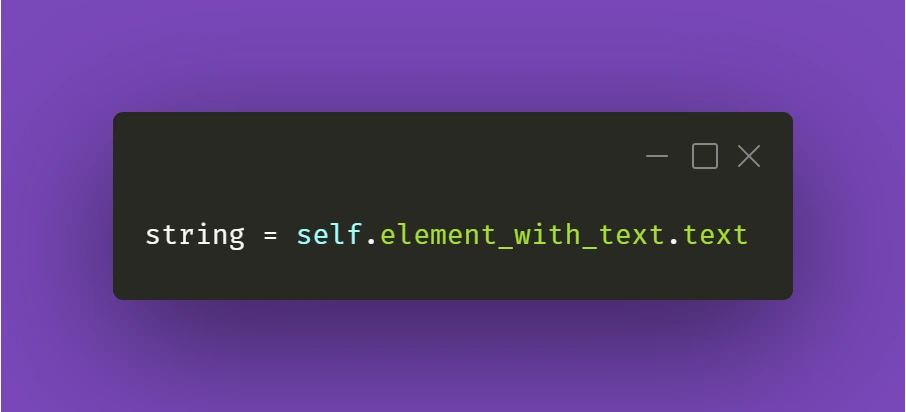
It all depends on the context and the element you're working with. So don't fall into the trap of assuming that all forms and elements in the app are exactly the same. Always check twice, you'll thank yourself for that, and in the end, you'll save tons of time!
React Apps - Keep on testing!
Hopefully, the tips and tricks I presented above will prove most useful for you in your testing projects. There's definitely more to share within the testing field, so make sure you stay tuned in for other articles on our blog!
Automation testing: Making tests independent from existing data
Each test automation project is different. The apps are different, the approach is different, even though the tools and frameworks used might seem to be the same. Each project brings different challenges and requirements, resulting in a need to adapt to solutions being delivered - although all of it is covered by the term "software testing". This time we want to tackle the issue of test data being used in automation testing.
Setting up the automation testing project
Let's consider the following scenario: as usual, our project implements the Page Object Pattern approach with the use of Cucumber .). This part is no novelty - tidy project structure and test scenarios written in Gherkin, which is easily understandable by non-technical team members. However, the application being tested required total independence from data existing in the database, even in Development and QA environments.
The solution implemented by our team had to ensure that every Test Scenario - laid out in each Feature File, which contains steps for testing particular functionalities, was completely independent from data existing on the environment and did not interfere with other Test Cases. What was also important, the tests were also meant to run simultaneously on Selenium Grid. In a nutshell, Feature Files couldn't rely on any data (apart from login credentials) and had to create all of the test data each time they were run.
To simplify the example we are going to discuss, we will describe an approach where only one user will be used to log in to the app. Its credentials remain unchanged so there are two things to do here to meet the project criteria: the login credentials have to be passed to the login scenario and said scenario has to be triggered before each Feature File since they are run simultaneously by a runner.
Independent logging in
The first part is really straightforward; in your environment file you need to include a similar block of code:
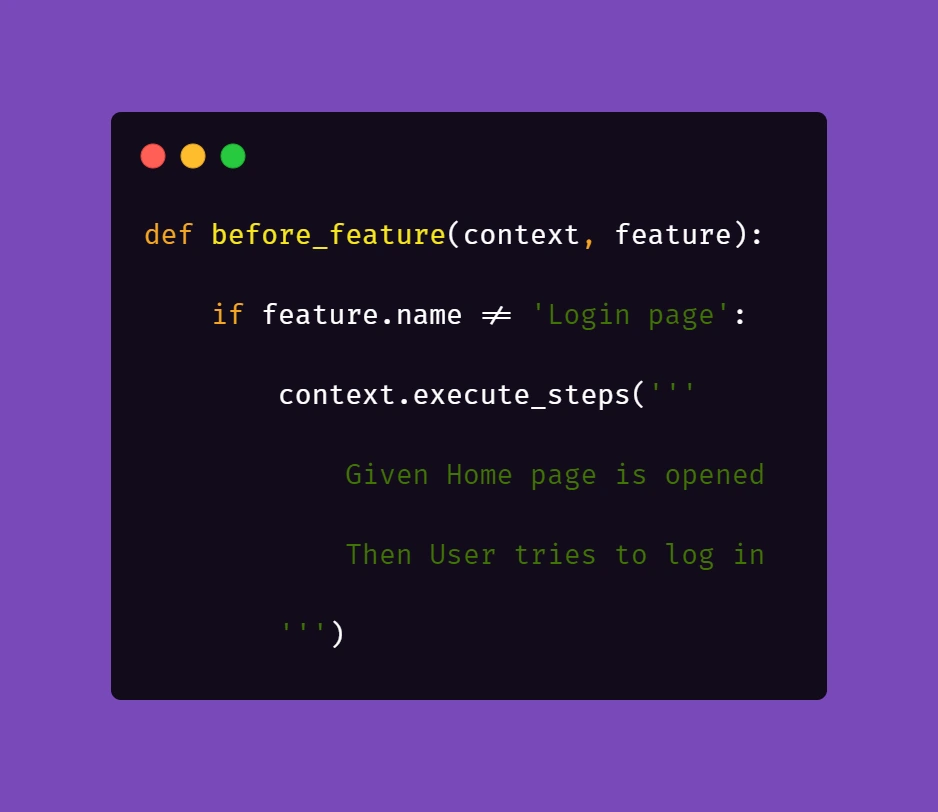
What this does is, before each feature file, which is not a Login scenario, Selenium will attempt to open the homepage of the project and attempt to log in.
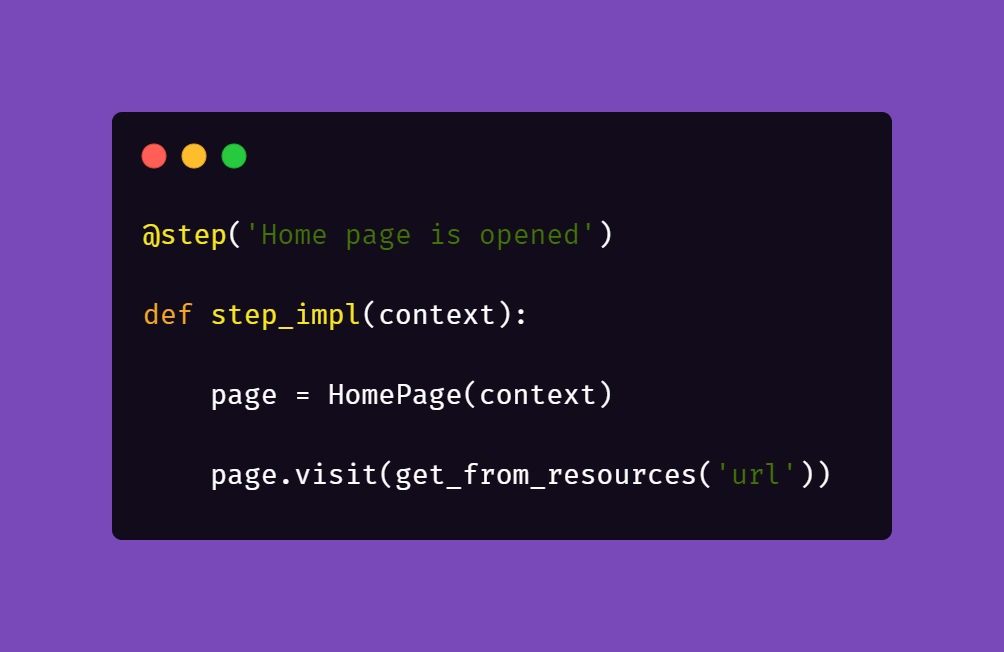
Then, we need to ensure that if a session is active, logging in should be skipped.

Therefore, in the second step 'User tries to log in' we verify if within the instance of running a particular feature file, the user's session is still active. In our case, when the homepage is opened and a logged user's session is active, the app's landing page is opened. Otherwise, the user is redirected to the login page. So in the above block of code we simply verify whether the login page is opened and if login_prompt_is_displayed method returns True , login steps are executed.
Once we dealt with logging in during simultaneous test runs, we need to handle the data being used during the tests. Again, let us simplify the example: let's assume that our hypothetical application allows its users - store staff - to add and review products the company has to offer. The system allows manipulating many data fields that affect other factors in workflows, e.g. product bundles, discounts, and suppliers. On top of that, the stock constantly grows and changes, thus even in test environments we shouldn't just run tests against migrated data to ensure consistency in test results.
As a result of that, our automation tests will have to cover the whole flow, adding all the necessary elements to the system to test against later on. In short: if we want to cover a scenario for editing certain data in a product, the tests will need to create that specific product, save it, search for it, manipulate the data, save changes and verify the results.
Create and manipulate
Below are the test steps to the above scenario laid out in Gherkin to illustrate what will it look like:
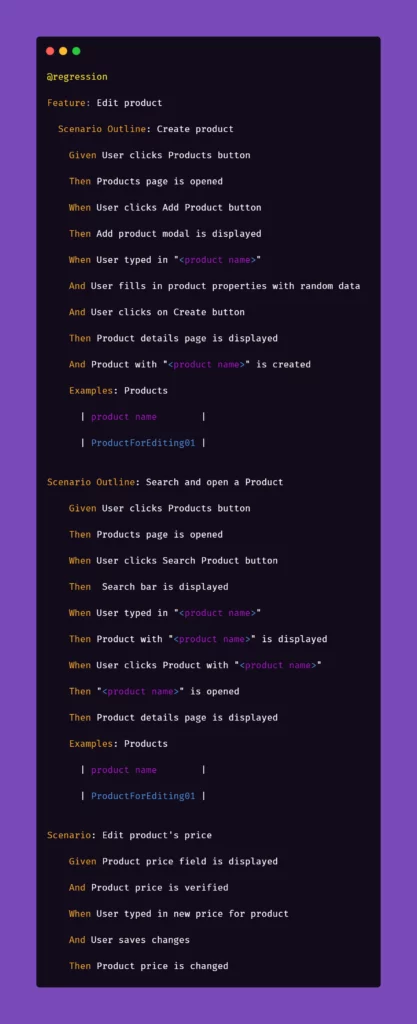
While the basic premise of the above scenarios may seem straightforward, the tricky part may be ensuring consistency during test runs. Of course, scripting a single scenario of adding an item in the app sounds simple, but what if we would have to do that a couple dozens of time during the regression suite run?
We want to have consistent, trackable test data while avoiding multiplying lines of code. To achieve that, we introduced another file to the project structure called 'globals' and placed it in the directory of feature files. Please note that in the above snippet, we extensively use "Examples" sections along with the "Scenario Outline" approach in Gherkin. We do that to pass parameters into test step definitions and methods that create and manipulate the actions we want to test in the application. That first stage of parametrization of a test scenario works in conjunction with the aforementioned 'globals' file. Let's consider the following contents of such file:
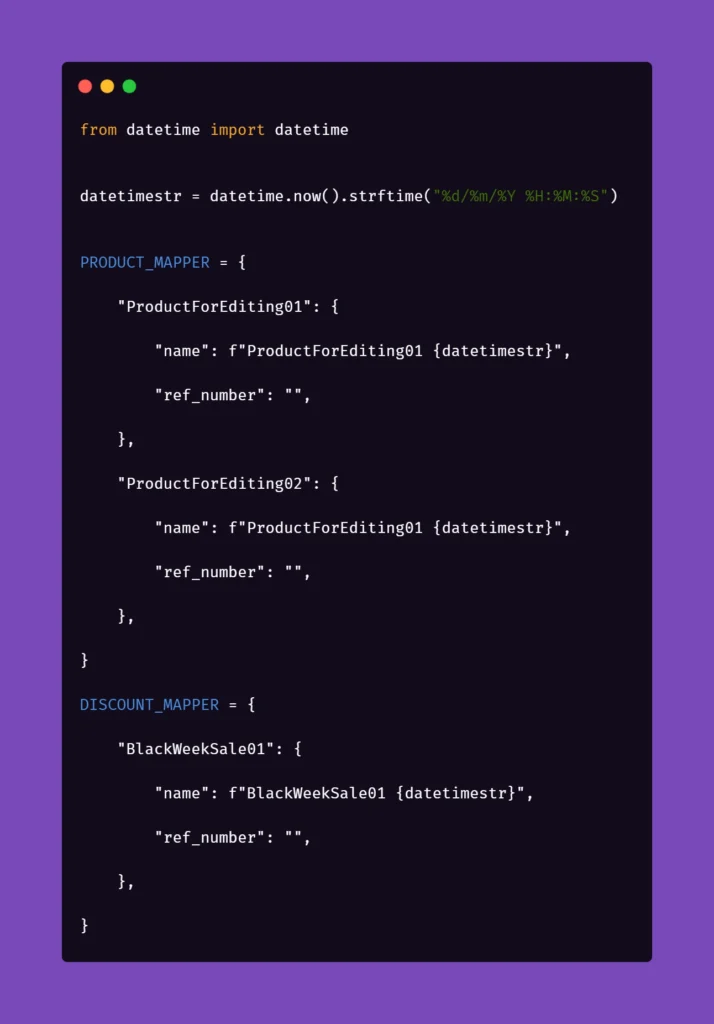
Inside the ‘globals’ file, you can find mappers for each type of object that the application can create and manipulate, for now including only a name and a reference number as an empty string. As you can see, each element will receive a datetime stamp right after its core name, each time the object in the mapper is called for. That will ensure the data created will always be unique. But what is the empty string for, you may ask?
The answer is as simple as its usage: we can store different parameters of objects inside the app that we test. For example, if a certain object can be found only by its reference number, which is unique and assigned by the system after creating, e.g., a product, we might want to store that in the mapper to use it later. But why stop there? The possibilities go pretty much as far as your imagination and patience go. You can use mappers to pass on various parameters to test steps if you need:

As you can see, the formula of mappers can really come in handy when your test suite needs to create somewhat repeatable, custom data for tests. The above snippet includes parameters for the creation of an item in the app which is a promotional campaign including certain types of products. Above that, you can see a mapping for a product that falls into one of the categories qualifying it for the promotional campaign. So hypothetically, if you want to test a scenario where enabling a promotional campaign will automatically discount certain products in the app, the mapping could help with that. But let's stick to basic examples to illustrate how to pass these parameters into the methods behind test steps.
Let us begin with the concept of creating products mentioned in the Gherkin snippet. Below is the excerpt from /steps file for step "User typed in "<product name>"":
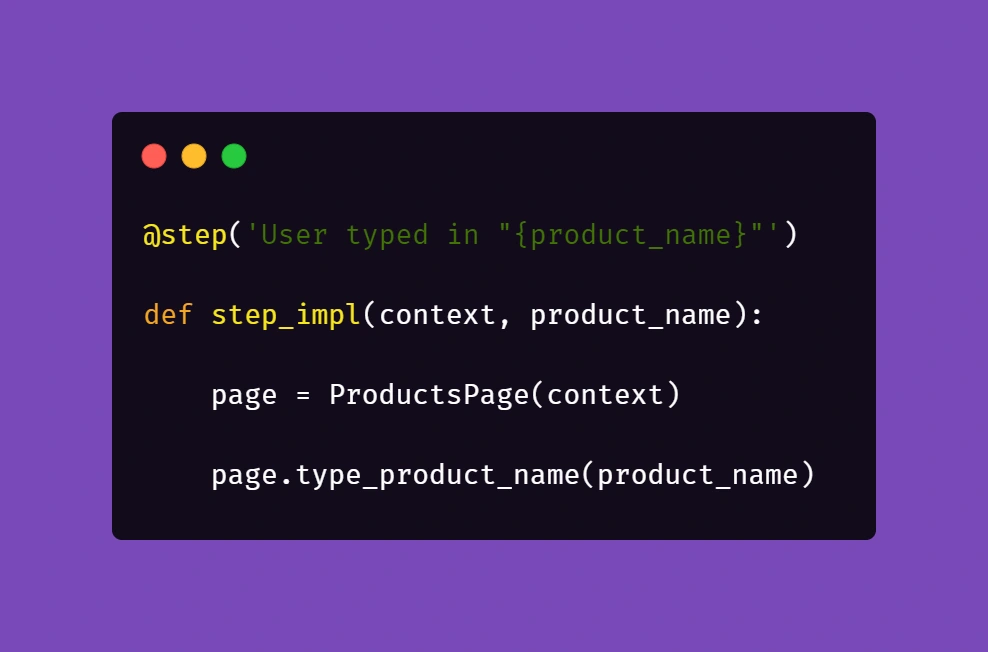
Above, we just simply pass the parameter from Gherkin to the method. Nothing fancy here. But it gets more interesting in /pages file:
First, you'll need to import a globals file to get to the data mapped out there:
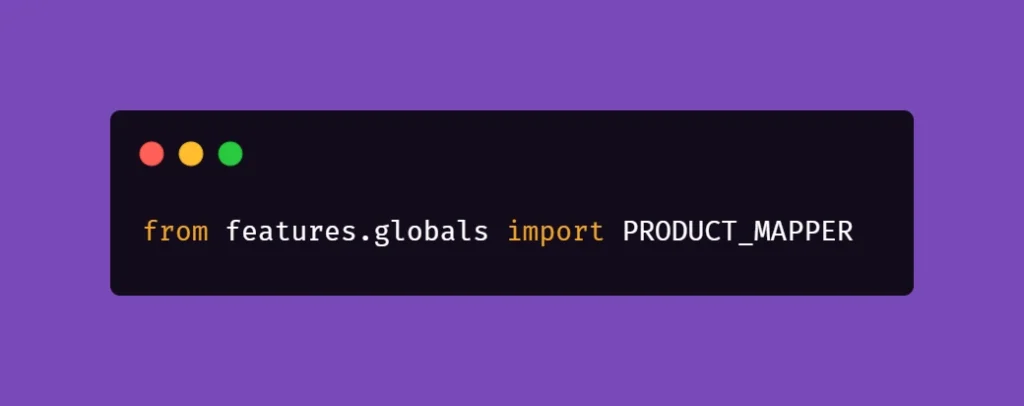
Next, we want to extract the data from mapper:
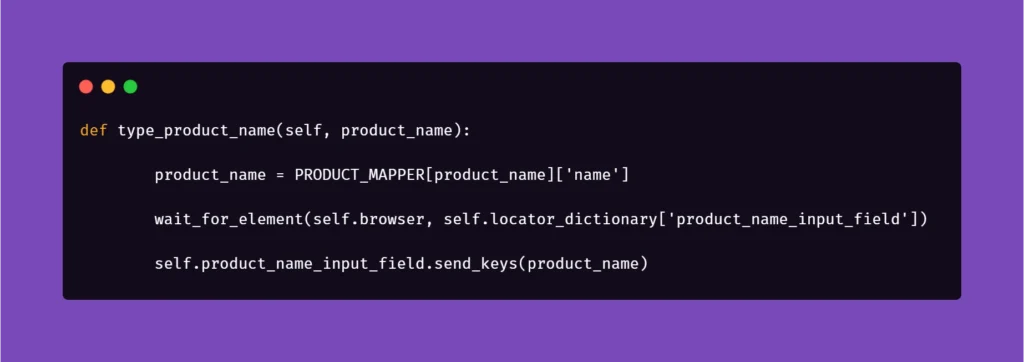
Basically, the name for the product inputted in the Examples section in Scenario Outline matches the name in PRODUCT_MAPPER . Used as a variable, it allows Selenium to input the same name with a timestamp each time the scenario asks for the creation of a certain object. This concept can be used quite extensively in the test code, parameterizing anything you need.
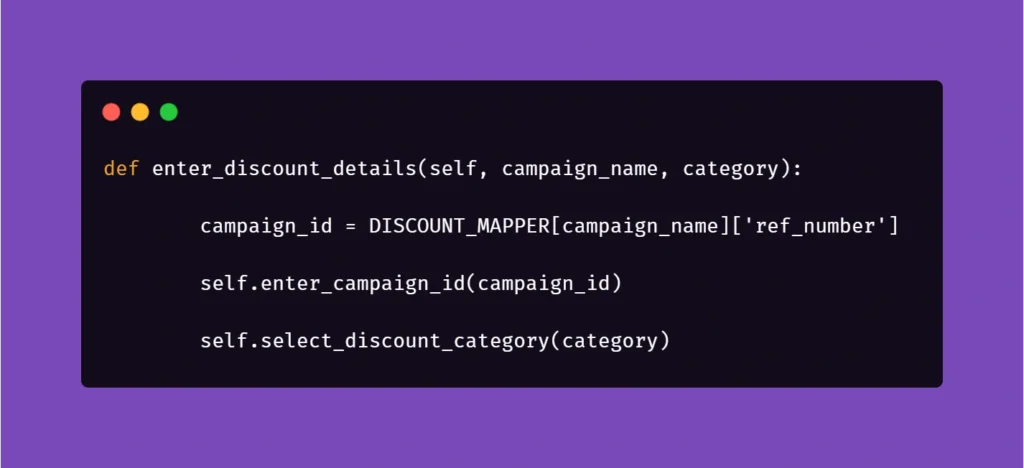
And another example:

Here, we get the data from mapper to create a specific locator to use in a specific context. This way, if the app supports it, test code can be reduced due to parametrization.
We hope that the concepts presented in this article will help you get on with your work on test automation suites. These ideas should help you automate tests faster, more clever, and much more efficiently, resulting in maximum consistency and stable results.