
Android Automotive OS 14 is out – build your own emulator from scratch!

Android Automotive OS 14 has arrived, and it marks a significant evolution in the way users interact with their vehicle's system. This version brings enhanced user experience, improved Android API, and better OS-level security (as well as non-automotive Android 14). In this short article, we'll walk you through a tutorial on creating your own emulator from scratch, but first, here are some of the standout features and improvements introduced in Android Automotive OS 14 !
Android Automotive 14 noteworthy new features
- Enhanced UI: Now with an optional, improved home screen adaptation to the portrait mode for better vehicle compatibility.
- Multi-User Upgrades: Support parallel sessions with custom sound zones and multiple displays.
- Remote Access: Enables system wake-up, executes a task and then shutdown via external requests.
- Extended VHAL: More ADAS and non-ADAS properties included to represent activation status and the system state.
- App Quick Actions: A feature that allows applications to showcase quick actions.
- Infotainment Reference Design: The starting point for developers to create apps for Android Automotive OS.
- New Boot Animation: Well, as usual 😊
To learn about all new features provided in Android Automotive 14, follow this link: https://source.android.com/docs/automotive/start/releases/u_udc_release?hl=en
Steps to building an emulator
The best operating system for building an emulator in AAOs is Ubuntu 18.04 or higher. If you use a different operating system, you must follow some extra steps. For instance, you may need to install a repo from https://gerrit.googlesource.com/git-repo instead of using a package manager.
1) You need first to install the required dependencies
sudo apt install git-core gnupg flex bison build-essential zip curl zlib1g-dev libc6-dev-i386 libncurses5 x11proto-core-dev libx11-dev lib32z1-dev libgl1-mesa-dev libxml2-utils xsltproc unzip fontconfig repo
2) Then, configure Git, set your name and email address
git config --global user.name "Your name"
git config --global user.email your@email
3) After configuring Git, you can download source code from a Git repository
repo init -u https://android.googlesource.com/platform/manifest -b android-14.0.0_r54 --partial-clone --clone-filter=blob:limit=10M && repo sync
You can skip ‐‐ partial-clone and ‐‐ clone-filter. However, this will result in longer download times. It’s recommended to check for the latest android-14.0.0_rXX tag before downloading, which can be found on this page: https://android.googlesource.com/platform/manifest/+refs .
Keep in mind that downloading takes a lot of time because the sources take about 150GB even with partial clone and clone-filter enabled.
4) In the next step, set up environment variables using the script provided
. build/envsetup.sh
This method replaces your JAVA_HOME and modifies PATH, so be aware that your console may act differently now.
5) Select the system to build
lunch sdk_car_portrait_x86_64-eng
You can create a landscape build by removing "portrait". Also, change x86_64 to arm64 if you want to run the system on Mac. For more details on building on Mac, check out this article .
6) Create the system and the emulator image
m && m emu_img_zip
The first command will take hours to complete. Take a break: go running, biking, hiking, or whatever drives you. You can modify threat pool usage by the build system with -j parameter, like m -j 16 – the default one is the CPU count of your machine.
7) Copy the emulator image to Android Studio emulator directory
mkdir -p /mnt/c/Users/<user>/AppData/Local/Android/Sdk/system-images/android-34/custom_aaos_14/ && unzip -o out/target/product/emulator_x86_64/sdk-repo-Linux-system-images-eng.dape.zip -d /mnt/c/Users/<user>/AppData/Local/Android/Sdk/system-images/android-34/custom_aaos_14/
I assume you work on a Windows machine with WSL. Please adapt the above commands with your Android/SDK directory if you are working on native Linux.
Create a package.xml file in /mnt/c/Users/<user>/AppData/Local/Android/Sdk/system-images/android-34/custom_aaos_14/x86_64 directory with the this content . The file provided bases on existing package.xml files in other emulator images.
Adjust “tag”, “vendor”, and “display name” in the upper file if needed. Make sure to match <localPackage obsolete="false" path="system-images;android-34;custom_aaos_14;x86_64"> with the path you’d placed the emulator image.
8) Now it’s time to create a new emulator in Android Studio
Open "Device Manager" and select "Create Virtual Device". In the left-hand menu, choose "Automotive" and add a new hardware profile using the button in the lower-left corner of the panel.
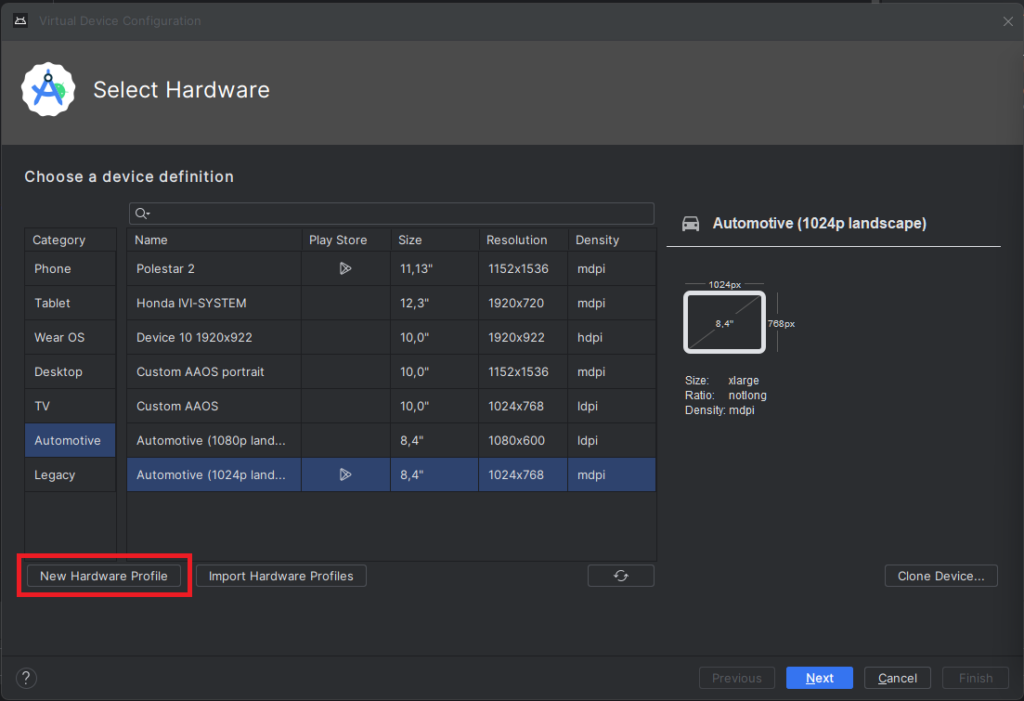
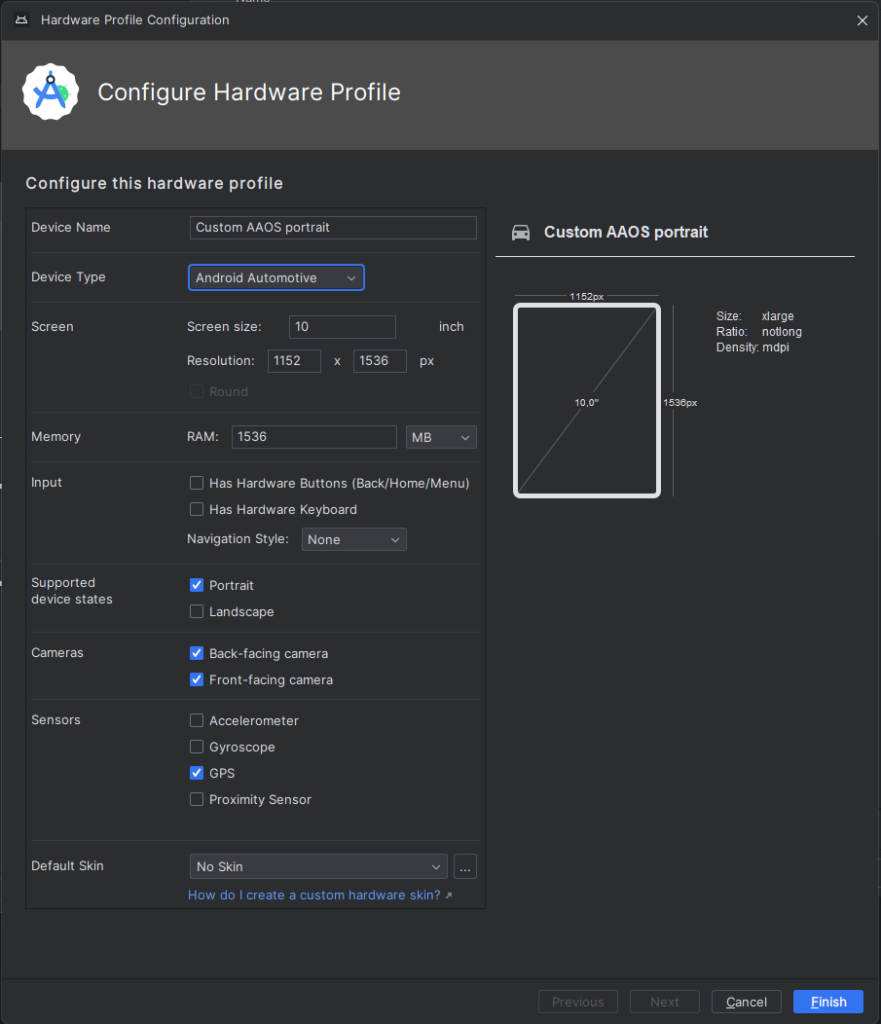
Select “Android Automotive” as a device type. Choose the correct resolution for your build. For example, I selected a resolution of 1152x1536 for a 10-inch device to create a portrait build. Next, allocate at least 1536 MB of RAM to your device. Then, choose only one supported device state - "Portrait" or "Landscape" - according to your build. Finally, disable any unnecessary sensors and skin for AAOS compatibility.
9) Accept and select your new hardware profile. Then, move on to the next step
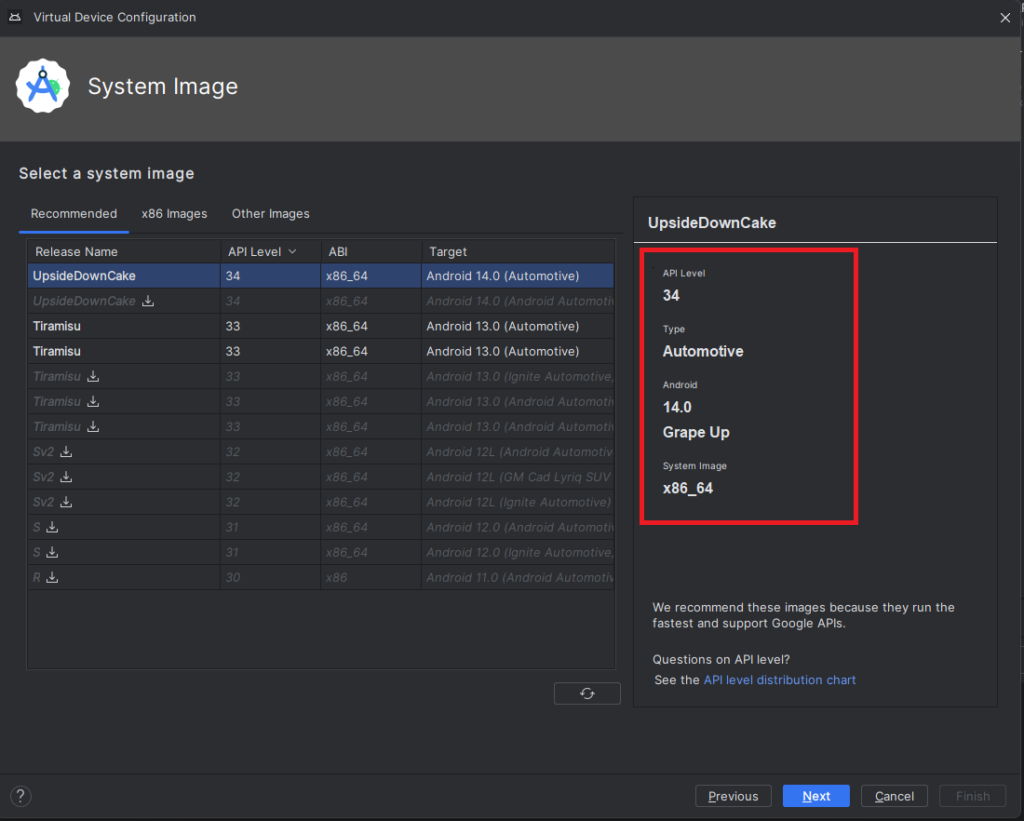
10) Pick your emulator image (you can find it using the tag and vendor configured in package.xml)
11) On the final screen, enter a name and complete the configuration process
12) To start the emulator, go to the "Device Manager" and launch it from there
13) You’re all set! Enjoy!
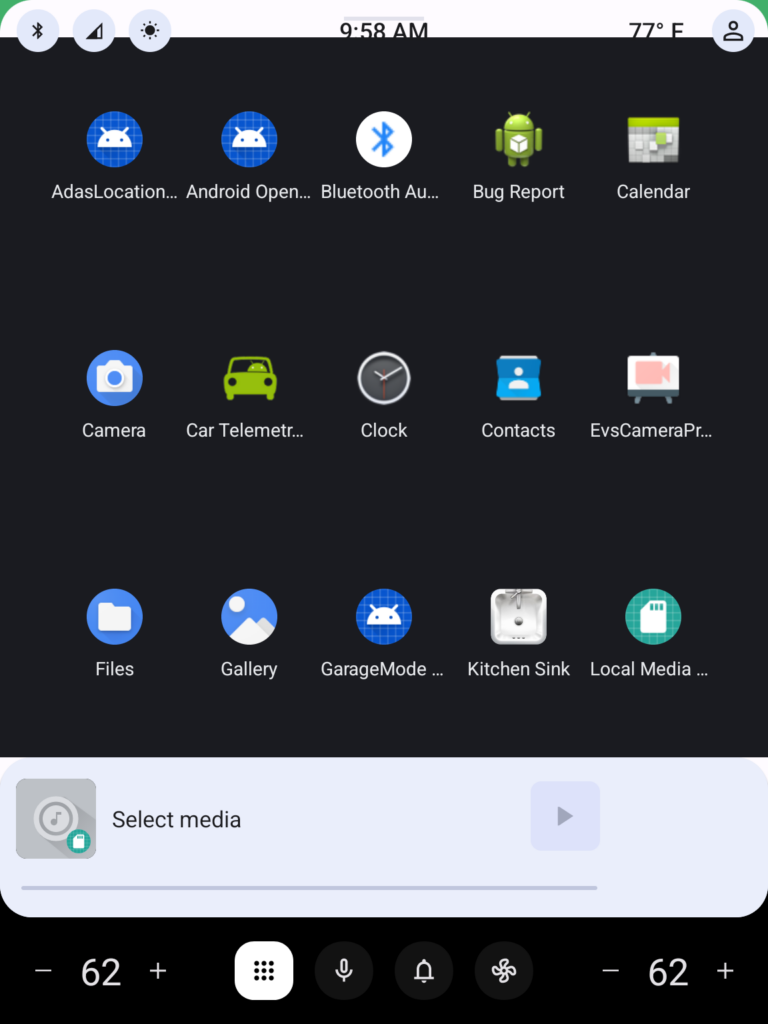
Get started on creating your very own Android Automotive OS 14 emulator by following the steps outlined in this article. Explore the possibilities of car technology and discover what the future has in store. You can find a AAOS “Hello World” example in our article How to Build Your First App for Android Automotive OS . Start building, try out the various features, and have fun with your new setup!

Grape Up guides enterprises on their data-driven transformation journey
Ready to ship? Let's talk.
Check related articles
Read our blog and stay informed about the industry's latest trends and solutions.
Android AAOS 14 - EVS network camera
The automotive industry has been rapidly evolving with technological advancements that enhance the driving experience and safety. Among these innovations, the Android Automotive Operating System (AAOS) has stood out, offering a versatile and customizable platform for car manufacturers.
The Exterior View System (EVS) is a comprehensive camera-based system designed to provide drivers with real-time visual monitoring of their vehicle's surroundings. It typically includes multiple cameras positioned around the vehicle to eliminate blind spots and enhance situational awareness, significantly aiding in maneuvers like parking and lane changes. By integrating with advanced driver assistance systems, EVS contributes to increased safety and convenience for drivers.
For more detailed information about EVS and its configuration, we highly recommend reading our article "Android AAOS 14 - Surround View Parking Camera: How to Configure and Launch EVS (Exterior View System)." This foundational article provides essential insights and instructions that we will build upon in this guide.
The latest Android Automotive Operating System , AAOS 14, presents new possibilities, but it does not natively support Ethernet cameras. In this article, we describe our implementation of an Ethernet camera integration with the Exterior View System (EVS) on Android.
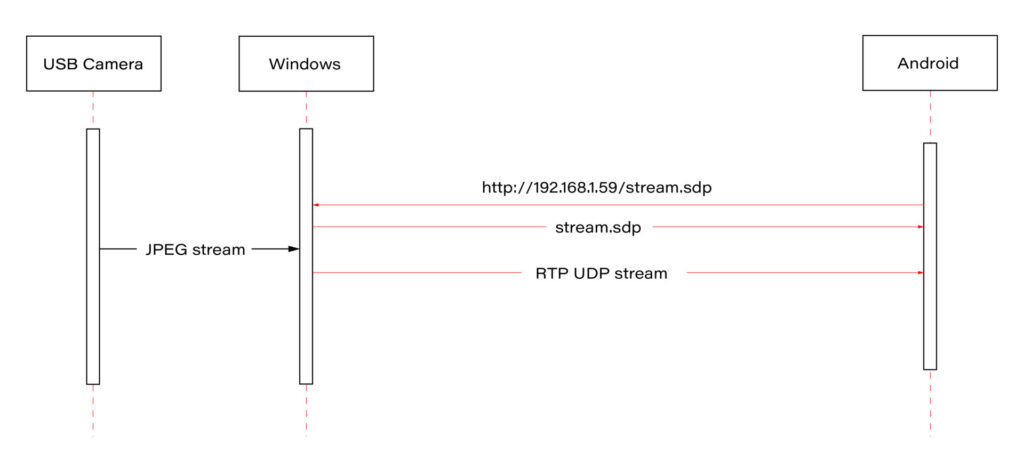
Our approach involves connecting a USB camera to a Windows laptop and streaming the video using the Real-time Transport Protocol (RTP). By employing the powerful FFmpeg software, the video stream will be broadcast and described in an SDP (Session Description Protocol) file, accessible via an HTTP server. On the Android side, we'll utilize the FFmpeg library to receive and decode the video stream, effectively bringing the camera feed into the AAOS 14 environment.
This article provides a step-by-step guide on how we achieved this integration of the EVS network camera, offering insights and practical instructions for those looking to implement a similar solution. The following diagram provides an overview of the entire process:
Building FFmpeg Library for Android
To enable RTP camera streaming on Android, the first step is to build the FFmpeg library for the platform. This section describes the process in detail, using the ffmpeg-android-maker project. Follow these steps to successfully build and integrate the FFmpeg library with the Android EVS (Exterior View System) Driver.
Step 1: Install Android SDK
First, install the Android SDK. For Ubuntu/Debian systems, you can use the following commands:
sudo apt update && sudo apt install android-sdk
The SDK should be installed in /usr/lib/android-sdk .
Step 2: Install NDK
Download the Android NDK (Native Development Kit) from the official website:
https://developer.android.com/ndk/downloads
After downloading, extract the NDK to your desired location.
Step 3: Build FFmpeg
Clone the ffmpeg-android-maker repository and navigate to its directory:
git clone https://github.com/Javernaut/ffmpeg-android-maker.gitcd ffmpeg-android-maker
Set the environment variables to point to the SDK and NDK:
export ANDROID_SDK_HOME=/usr/lib/android-sdk
export ANDROID_NDK_HOME=/path/to/ndk/
Run the build script:
./ffmpeg-android-maker.sh
This script will download FFmpeg source code and dependencies, and compile FFmpeg for various Android architectures.
Step 4: Copy Library Files to EVS Driver
After the build process is complete, copy the .so library files from build/ffmpeg/ to the EVS Driver directory in your Android project:
cp build/ffmpeg/*.so /path/to/android/project/packages/services/Car/cpp/evs/sampleDriver/aidl/
Step 5: Add Libraries to EVS Driver Build Files
Edit the Android.bp file in the aidl directory to include the prebuilt FFmpeg libraries:
cc_prebuilt_library_shared {
    name: "rtp-libavcodec",
    vendor: true,
    srcs: ["libavcodec.so"],
    strip: {
        none: true,
    },
    check_elf_files: false,
}

cc_prebuilt_library {
    name: "rtp-libavformat",
    vendor: true,
    srcs: ["libavformat.so"],
    strip: {
        none: true,
    },
    check_elf_files: false,
}

cc_prebuilt_library {
    name: "rtp-libavutil",
    vendor: true,
    srcs: ["libavutil.so"],
    strip: {
        none: true,
    },
    check_elf_files: false,
}

cc_prebuilt_library_shared {
    name: "rtp-libswscale",
    vendor: true,
    srcs: ["libswscale.so"],
    strip: {
        none: true,
    },
    check_elf_files: false,
}
Add prebuilt libraries to EVS Driver app:
cc_binary {
    name: "android.hardware.automotive.evs-default",
    defaults: ["android.hardware.graphics.common-ndk_static"],
    vendor: true,
    relative_install_path: "hw",
    srcs: [
        ":libgui_frame_event_aidl",
        "src/*.cpp"
    ],
    shared_libs: [
        "rtp-libavcodec",
       	"rtp-libavformat",
       	"rtp-libavutil",
       	"rtp-libswscale",
        "android.hardware.graphics.bufferqueue@1.0",
        "android.hardware.graphics.bufferqueue@2.0",
        android.hidl.token@1.0-utils,

....]
}
By following these steps, you will have successfully built the FFmpeg library for Android and integrated it into the EVS Driver.
EVS Driver RTP Camera Implementation
In this chapter, we will demonstrate how to quickly implement RTP support for the EVS (Exterior View System) driver in Android AAOS 14. This implementation is for demonstration purposes only. For production use, the implementation should be optimized, adapted to specific requirements, and all possible configurations and edge cases should be thoroughly tested. Here, we will focus solely on displaying the video stream from RTP.
The main files responsible for capturing and decoding video from USB cameras are implemented in the EvsV4lCamera and VideoCapture classes. To handle RTP, we will copy these classes and rename them to EvsRTPCamera and RTPCapture . RTP handling will be implemented in RTPCapture . We need to implement four main functions:
bool open(const char* deviceName, const int32_t width = 0, const int32_t height = 0);
void close();
bool startStream(std::function<void(RTPCapture*, imageBuffer*, void*)> callback = nullptr);
void stopStream();
We will use the official example from the FFmpeg library, https://github.com/FFmpeg/FFmpeg/blob/master/doc/examples/demux_decode.c, which decodes the specified video stream into RGBA buffers. After adapting the example, the RTPCapture.cpp file will look like this:
#include "RTPCapture.h"
#include <android-base/logging.h>

#include <errno.h>
#include <error.h>
#include <fcntl.h>
#include <memory.h>
#include <stdio.h>
#include <stdlib.h>
#include <sys/ioctl.h>
#include <sys/mman.h>
#include <unistd.h>

#include <cassert>
#include <iomanip>
#include <stdio.h>
#include <stdlib.h>
#include <iostream>
#include <fstream>
#include <sstream>

static AVFormatContext *fmt_ctx = NULL;
static AVCodecContext *video_dec_ctx = NULL, *audio_dec_ctx;
static int width, height;
static enum AVPixelFormat pix_fmt;

static enum AVPixelFormat out_pix_fmt = AV_PIX_FMT_RGBA;

static AVStream *video_stream = NULL, *audio_stream = NULL;
static struct SwsContext *resize;
static const char *src_filename = NULL;

static uint8_t *video_dst_data[4] = {NULL};
static int video_dst_linesize[4];
static int video_dst_bufsize;

static int video_stream_idx = -1, audio_stream_idx = -1;
static AVFrame *frame = NULL;
static AVFrame *frame2 = NULL;
static AVPacket *pkt = NULL;
static int video_frame_count = 0;

int RTPCapture::output_video_frame(AVFrame *frame)
{
    LOG(INFO) << "Video_frame: " << video_frame_count++
              << " ,scale height: " << sws_scale(resize, frame->data, frame->linesize, 0, height, video_dst_data, video_dst_linesize);
if (mCallback) {
imageBuffer buf;
        buf.index = video_frame_count;
        buf.length = video_dst_bufsize;
        mCallback(this, &buf, video_dst_data[0]);
    }

    return 0;
}

int RTPCapture::decode_packet(AVCodecContext *dec, const AVPacket *pkt)
{
    int ret = 0;

    ret = avcodec_send_packet(dec, pkt);
    if (ret < 0) {
        return ret;
    }

    // get all the available frames from the decoder
    while (ret >= 0) {
        ret = avcodec_receive_frame(dec, frame);
        if (ret < 0) {
            if (ret == AVERROR_EOF || ret == AVERROR(EAGAIN))
            {
                return 0;
            }
            return ret;
        }

        // write the frame data to output file
        if (dec->codec->type == AVMEDIA_TYPE_VIDEO) {
            ret = output_video_frame(frame);
        }

        av_frame_unref(frame);
        if (ret < 0)
            return ret;
    }

    return 0;
}

int RTPCapture::open_codec_context(int *stream_idx,
                              AVCodecContext **dec_ctx, AVFormatContext *fmt_ctx, enum AVMediaType type)
{
    int ret, stream_index;
    AVStream *st;
    const AVCodec *dec = NULL;

    ret = av_find_best_stream(fmt_ctx, type, -1, -1, NULL, 0);
    if (ret < 0) {
        fprintf(stderr, "Could not find %s stream in input file '%s'\n",
                av_get_media_type_string(type), src_filename);
        return ret;
    } else {
        stream_index = ret;
        st = fmt_ctx->streams[stream_index];

        /* find decoder for the stream */
        dec = avcodec_find_decoder(st->codecpar->codec_id);
        if (!dec) {
            fprintf(stderr, "Failed to find %s codec\n",
                    av_get_media_type_string(type));
            return AVERROR(EINVAL);
        }

        /* Allocate a codec context for the decoder */
        *dec_ctx = avcodec_alloc_context3(dec);
        if (!*dec_ctx) {
            fprintf(stderr, "Failed to allocate the %s codec context\n",
                    av_get_media_type_string(type));
            return AVERROR(ENOMEM);
        }

        /* Copy codec parameters from input stream to output codec context */
        if ((ret = avcodec_parameters_to_context(*dec_ctx, st->codecpar)) < 0) {
            fprintf(stderr, "Failed to copy %s codec parameters to decoder context\n",
                    av_get_media_type_string(type));
            return ret;
        }

        av_opt_set((*dec_ctx)->priv_data, "preset", "ultrafast", 0);
        av_opt_set((*dec_ctx)->priv_data, "tune", "zerolatency", 0);

        /* Init the decoders */
        if ((ret = avcodec_open2(*dec_ctx, dec, NULL)) < 0) {
            fprintf(stderr, "Failed to open %s codec\n",
                    av_get_media_type_string(type));
            return ret;
        }
        *stream_idx = stream_index;
    }

    return 0;
}

bool RTPCapture::open(const char* /*deviceName*/, const int32_t /*width*/, const int32_t /*height*/) {
    LOG(INFO) << "RTPCapture::open";

    int ret = 0;
    avformat_network_init();

    mFormat = V4L2_PIX_FMT_YUV420;
    mWidth = 1920;
    mHeight = 1080;
    mStride = 0;

    /* open input file, and allocate format context */
    if (avformat_open_input(&fmt_ctx, "http://192.168.1.59/stream.sdp", NULL, NULL) < 0) {
        LOG(ERROR) << "Could not open network stream";
        return false;
    }
    LOG(INFO) << "Input opened";

    isOpened = true;

    /* retrieve stream information */
    if (avformat_find_stream_info(fmt_ctx, NULL) < 0) {
        LOG(ERROR) << "Could not find stream information";
        return false;
    }
    LOG(INFO) << "Stream info found";

    if (open_codec_context(&video_stream_idx, &video_dec_ctx, fmt_ctx, AVMEDIA_TYPE_VIDEO) >= 0) {
        video_stream = fmt_ctx->streams[video_stream_idx];

        /* allocate image where the decoded image will be put */
        width = video_dec_ctx->width;
        height = video_dec_ctx->height;
        pix_fmt = video_dec_ctx->sw_pix_fmt;

        resize = sws_getContext(width, height, AV_PIX_FMT_YUVJ422P,
                                width, height, out_pix_fmt, SWS_BICUBIC, NULL, NULL, NULL);

        LOG(ERROR) << "RTPCapture::open pix_fmt: " << video_dec_ctx->pix_fmt
                   << ", sw_pix_fmt: " << video_dec_ctx->sw_pix_fmt
                   << ", my_fmt: " << pix_fmt;

        ret = av_image_alloc(video_dst_data, video_dst_linesize,
                             width, height, out_pix_fmt, 1);

        if (ret < 0) {
            LOG(ERROR) << "Could not allocate raw video buffer";
            return false;
        }
        video_dst_bufsize = ret;
    }

    av_dump_format(fmt_ctx, 0, src_filename, 0);

    if (!audio_stream && !video_stream) {
        LOG(ERROR) << "Could not find audio or video stream in the input, aborting";
        ret = 1;
        return false;
    }

    frame = av_frame_alloc();
    if (!frame) {
        LOG(ERROR) << "Could not allocate frame";
        ret = AVERROR(ENOMEM);
        return false;
    }
    frame2 = av_frame_alloc();

    pkt = av_packet_alloc();
    if (!pkt) {
        LOG(ERROR) << "Could not allocate packet";
        ret = AVERROR(ENOMEM);
        return false;
    }

    return true;
}

void RTPCapture::close() {
    LOG(DEBUG) << __FUNCTION__;
}

bool RTPCapture::startStream(std::function<void(RTPCapture*, imageBuffer*, void*)> callback) {
    LOG(INFO) << "startStream";
    if(!isOpen()) {
        LOG(ERROR) << "startStream failed. Stream not opened";
        return false;
    }

    stop_thread_1 = false;
    mCallback = callback;
    mCaptureThread = std::thread([this]() { collectFrames(); });

    return true;
}

void RTPCapture::stopStream() {
    LOG(INFO) << "stopStream";
    stop_thread_1 = true;
    mCaptureThread.join();
    mCallback = nullptr;
}

bool RTPCapture::returnFrame(int i) {
    LOG(INFO) << "returnFrame" << i;
    return true;
}

void RTPCapture::collectFrames() {
    int ret = 0;

    LOG(INFO) << "Reading frames";
    /* read frames from the file */
    while (av_read_frame(fmt_ctx, pkt) >= 0) {
        if (stop_thread_1) {
            return;
        }

        if (pkt->stream_index == video_stream_idx) {
            ret = decode_packet(video_dec_ctx, pkt);
        }
        av_packet_unref(pkt);
        if (ret < 0)
            break;
    }
}

int RTPCapture::setParameter(v4l2_control&) {
    LOG(INFO) << "RTPCapture::setParameter";
    return 0;
}

int RTPCapture::getParameter(v4l2_control&) {
    LOG(INFO) << "RTPCapture::getParameter";
    return 0;
}

std::set<uint32_t> RTPCapture::enumerateCameraControls() {
    LOG(INFO) << "RTPCapture::enumerateCameraControls";
    std::set<uint32_t> ctrlIDs;
    return std::move(ctrlIDs);
}

void* RTPCapture::getLatestData() {
    LOG(INFO) << "RTPCapture::getLatestData";
    return nullptr;
}

bool RTPCapture::isFrameReady() {
    LOG(INFO) << "RTPCapture::isFrameReady";
    return true;
}

void RTPCapture::markFrameConsumed(int i) {
    LOG(INFO) << "RTPCapture::markFrameConsumed frame: " << i;
}

bool RTPCapture::isOpen() {
    LOG(INFO) << "RTPCapture::isOpen";
    return isOpened;
}
Next, we need to modify EvsRTPCamera to use our RTPCapture class instead of VideoCapture . In EvsRTPCamera.h , add:
#include "RTPCapture.h"
And replace:
VideoCapture mVideo = {};
with:
RTPCapture mVideo = {};
In EvsRTPCamera.cpp , we also need to make changes. In the forwardFrame(imageBuffer* pV4lBuff, void* pData) function, replace:
mFillBufferFromVideo(bufferDesc, (uint8_t*)targetPixels, pData, mVideo.getStride());
with:
memcpy(targetPixels, pData, pV4lBuff->length);
This is because the VideoCapture class provides a buffer from the camera in various YUYV pixel formats. The mFillBufferFromVideo function is responsible for converting the pixel format to RGBA. In our case, RTPCapture already provides an RGBA buffer. This is done in the
int RTPCapture::output_video_frame(AVFrame *frame) function using sws_scale from the FFmpeg library.
Now we need to ensure that our RTP camera is recognized by the system. The EvsEnumerator class and its enumerateCameras function are responsible for detecting cameras. This function adds all video files from the /dev/ directory.
To add our RTP camera, we will append the following code at the end of the enumerateCameras function:
if (addCaptureDevice("rtp1")) {
    ++captureCount;
}
This will add a camera with the ID "rtp1" to the list of detected cameras, making it visible to the system.
The final step is to modify the EvsEnumerator: :openCamera function to direct the camera with the ID "rtp1" to the RTP implementation. Normally, when opening a USB camera, an instance of the EvsV4lCamera class is created:
pActiveCamera = EvsV4lCamera::Create(id.data());
In our example, we will hardcode the ID check and create the appropriate object:
if (id == "rtp1") {
    pActiveCamera = EvsRTPCamera::Create(id.data());
} else {
    pActiveCamera = EvsV4lCamera::Create(id.data());
}
With this implementation, our camera should start working. Now we need to build the EVS Driver application and push it to the device along with the FFmpeg libraries:
mmma packages/services/Car/cpp/evs/sampleDriver/
adb push out/target/product/rpi4/vendor/bin/hw/android.hardware.automotive.evs-default /vendor/bin/hw/
Launching the RTP Camera
To stream video from your camera, you need to install FFmpeg ( https://www.ffmpeg.org/download.html#build-windows ) and an HTTP server on the computer that will be streaming the video.
Start FFmpeg (example on Windows):
ffmpeg -f dshow -video_size 1280x720 -i video="USB Camera" -c copy -f rtp rtp://192.168.1.53:8554
where:
- -video_size is video resolution
- "USB Camera" is the name of the camera as it appears in the Device Manager
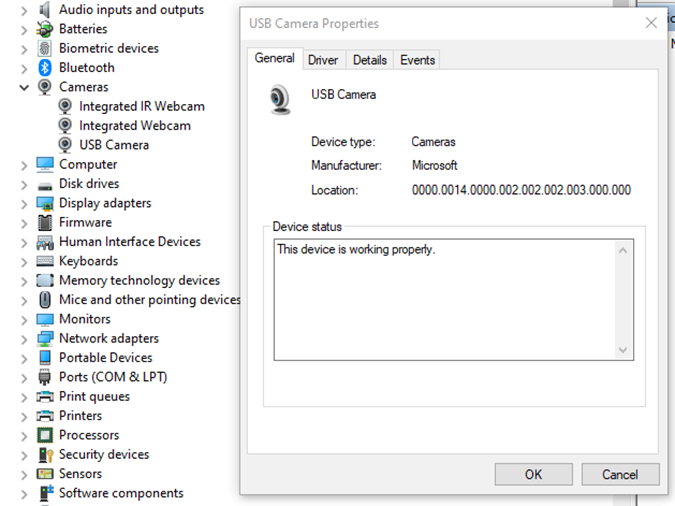
- "-c copy" means that individual frames from the camera (in JPEG format) will be copied to the RTP stream without changes. Otherwise, FFmpeg would need to decode and re-encode the image, introducing unnecessary delays.
- "rtp://192.168.1.53:8554": 192.168.1.53 is the IP address of our Android device. You should adjust this accordingly. Port 8554 can be left as the default.
After starting FFmpeg, you should see output similar to this on the console:
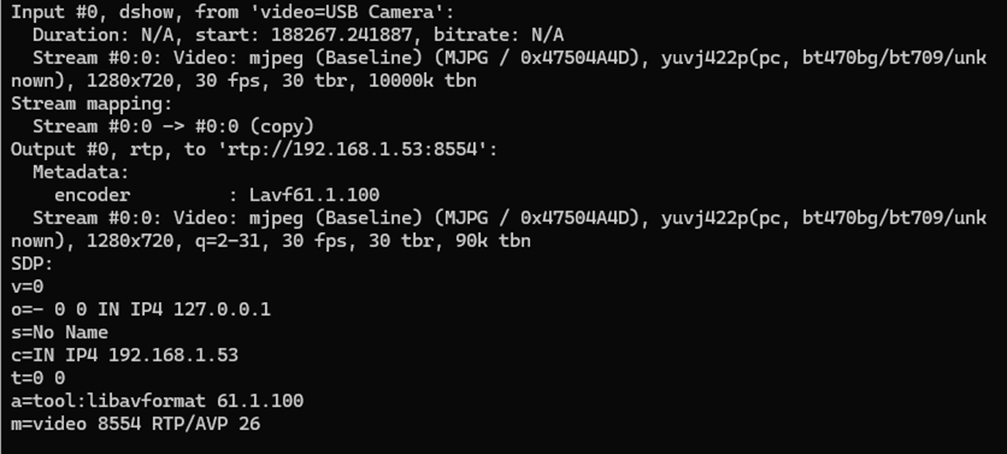
Here, we see the input, output, and SDP sections. In the input section, the codec is JPEG, which is what we need. The pixel format is yuvj422p, with a resolution of 1920x1080 at 30 fps. The stream parameters in the output section should match.
Next, save the SDP section to a file named stream.sdp on the HTTP server. Our EVS Driver application needs to fetch this file, which describes the stream.
In our example, the Android device should access this file at: http://192.168.1.59/stream.sdp
The exact content of the file should be:
v=0
o=- 0 0 IN IP4 127.0.0.1
s=No Name
c=IN IP4 192.168.1.53
t=0 0
a=tool:libavformat 61.1.100
m=video 8554 RTP/AVP 26
Now, restart the EVS Driver application on the Android device:
killall android.hardware.automotive.evs-default
Then, configure the EVS app to use the camera "rtp1". For detailed instructions on how to configure and launch the EVS (Exterior View System), refer to the article "Android AAOS 14 - Surround View Parking Camera: How to Configure and Launch EVS (Exterior View System)".
Performance Testing
In this chapter, we will measure and compare the latency of the video stream from a camera connected via USB and RTP.
How Did We Measure Latency?
- Setup Timer: Displayed a timer on the computer screen showing time with millisecond precision.
- Camera Capture: Pointed the EVS camera at this screen so that the timer was also visible on the Android device screen.
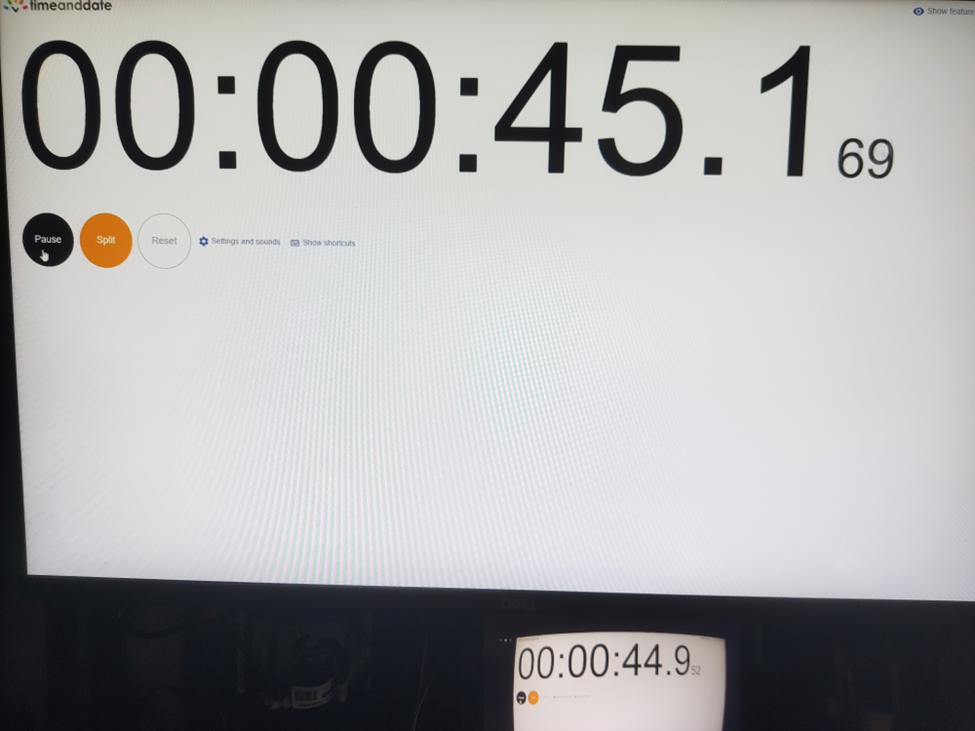
- Snapshot Comparison: Took photos of both screens simultaneously. The time displayed on the Android device was delayed compared to the computer screen. The difference in time between the computer and the Android device represents the camera's latency.
This latency is composed of several factors:
- Camera Latency: The time the camera takes to capture the image from the sensor and encode it into the appropriate format.
- Transmission Time: The time taken to transmit the data via USB or RTP.
- Decoding and Display: The time to decode the video stream and display the image on the screen.
Latency Comparison
Below are the photos showing the latency:
USB Camera
RTP Camera
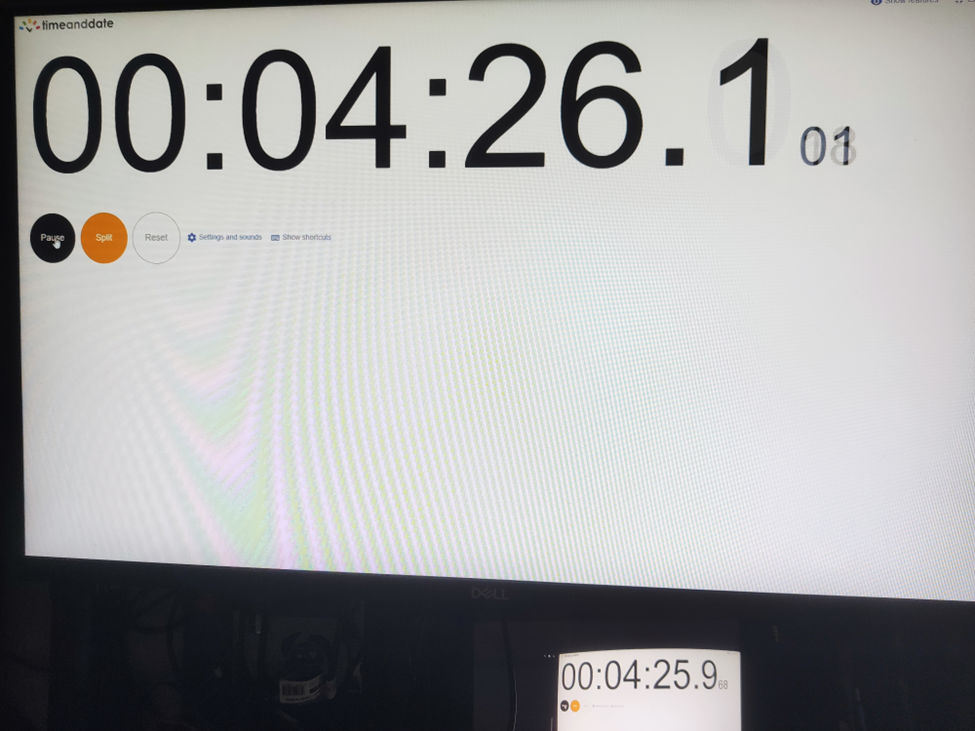
From these measurements, we found that the average latency for a camera connected via USB to the Android device is 200ms , while the latency for the camera connected via RTP is 150ms . This result is quite surprising.
The reasons behind these results are:
- The EVS implementation on Android captures video from the USB camera in YUV and similar formats, whereas FFmpeg streams RTP video in JPEG format.
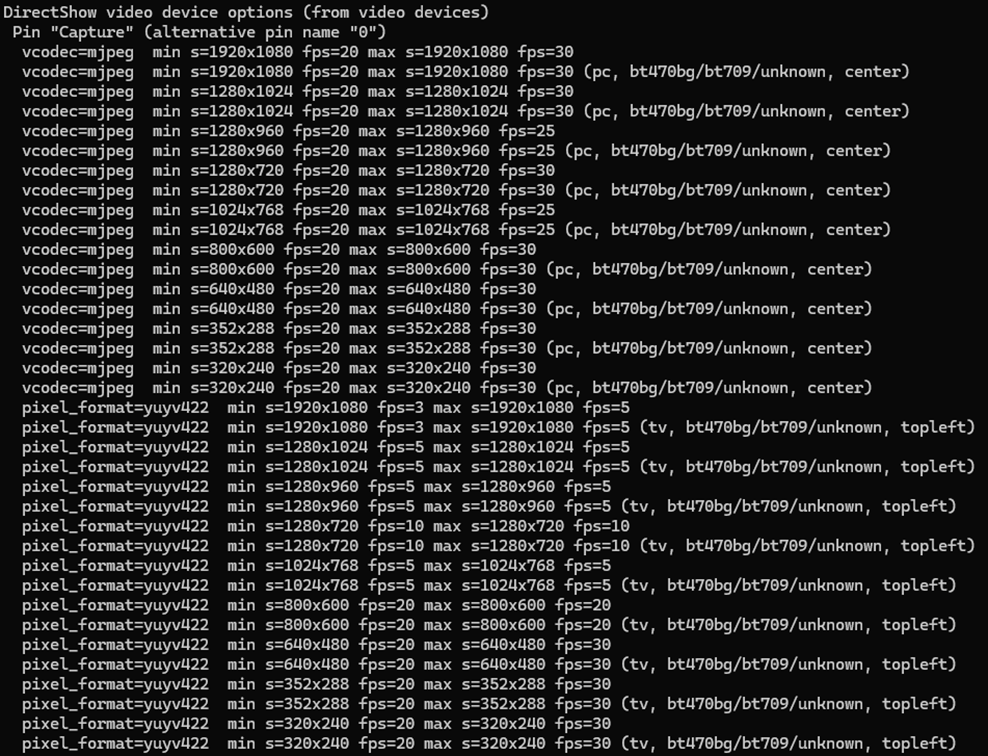
- The USB camera used has a higher latency in generating YUV images compared to JPEG. Additionally, the frame rate is much lower. For a resolution of 1280x720, the YUV format only supports 10 fps, whereas JPEG supports the full 30 fps.
All camera modes can be checked using the command:
ffmpeg -f dshow -list_options true -i video="USB Camera"
Conclusion
This article has taken you through the comprehensive process of integrating an RTP camera into the Android EVS (Exterior View System) framework, highlighting the detailed steps involved in both the implementation and the performance evaluation.
We began our journey by developing new classes, EvsRTPCamera and RTPCapture , which were specifically designed to handle RTP streams using FFmpeg. This adaptation allowed us to process and stream real-time video effectively. To ensure our system recognized the RTP camera, we made critical adjustments to the EvsEnumerator class. By customizing the enumerateCameras and openCamera functions, we ensured that our RTP camera was correctly instantiated and recognized by the system.
Next, we focused on building and deploying the EVS Driver application, including the necessary FFmpeg libraries, to our target Android device. This step was crucial for validating our implementation in a real-world environment. We also conducted a detailed performance evaluation to measure and compare the latency of video feeds from USB and RTP cameras. Using a timer displayed on a computer screen, we captured the timer with the EVS camera and compared the time shown on both the computer and Android screens. This method allowed us to accurately determine the latency introduced by each camera setup.
Our performance tests revealed that the RTP camera had an average latency of 150ms, while the USB camera had a latency of 200ms. This result was unexpected but highly informative. The lower latency of the RTP camera was largely due to the use of the JPEG format, which our particular USB camera handled less efficiently due to its slower YUV processing. This significant finding underscores the RTP camera's suitability for applications requiring real-time video performance, such as automotive surround view parking systems, where quick response times are essential for safety and user experience.
Interested in our services?
Reach out for tailored solutions and expert guidance.